The Component Editor
A component (TBComponent) is TreasureBoat’s reusable UI building block. From
the Project Layout post you know it
is a .wo folder of small files — plus a Java class next door:
MyComponent.wo/
    MyComponent.html    (the template)
    MyComponent.wod     (the bindings)      – optional
    MyComponent.api     (the interface)     – optional
    MyComponent.md      (the docs)          – optional
src/main/java/…/component/MyComponent.java  (the logic)
Editing those as separate files scattered around the Project View is painful, so
the Component Editor pulls all of them into one tabbed editor. Open any
file inside a .wo folder and the editor opens with a tab per file.
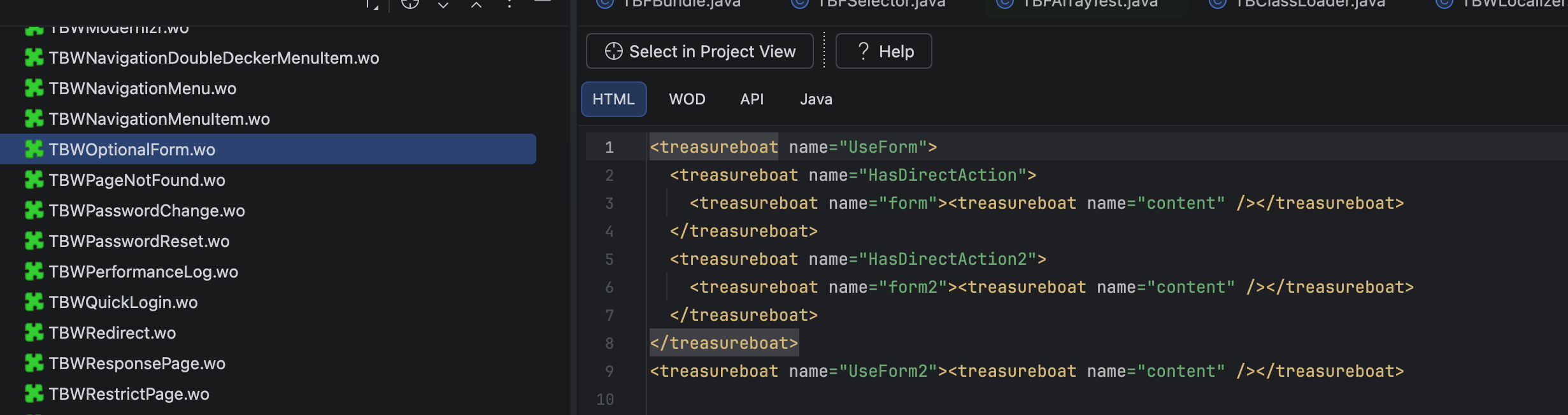
How the four files fit together
This is the part worth understanding — the files are wired by name:
- HTML marks a dynamic spot with
<treasureboat name="LoginForm">. - WOD binds that name to a dynamic element and its values:
LoginForm : TBForm { … }. - API (optional) declares the component’s own public bindings — its interface (see The API Editor).
- Java provides the values and actions the WOD refers to, via KVC.
So <treasureboat name="X"> (HTML) ↔ X : Type { value = something; } (WOD) ↔
something() (Java). Same names, three files.
Not every dynamic tag needs a WOD entry: inline
<tb:…>tags (like<tb:TBString value="$title"/>) carry their bindings inline. The named<treasureboat name="X">form is what pairs with a WOD entryX.
The tabs
HTML
The template — standard HTML plus TreasureBoat dynamic tags:
<treasureboat name="LoginForm">
    <treasureboat name="UserName"></treasureboat>
    <treasureboat name="SubmitButton" />
</treasureboat>
WOD
Binds each named element to a dynamic element type and its values:
LoginForm : TBForm {
    name = "LoginForm";
}
UserName : TBTextField {
    value = user.name;
    placeholder = "Enter username";
}
SubmitButton : TBSubmitButton {
    action = loginAction;
    value = "Sign In";
}
Each entry is Name : ElementType { binding = value; … }. The value can be a KVC
key path (user.name), a constant ("Sign In", 2, true), or an action
method (loginAction).
API
The component’s public interface — covered in The API Editor.
Java
The server-side logic — extends TBComponent, and exposes the methods the WOD
binds to:
public class MyComponent extends TBComponent {
    public MyComponent(final TBContext context) { super(context); }

    public String userName() { return session().currentUser().name(); }

    public TBComponent loginAction() { /* … */ return pageWithName(HomePage.class); }
}
Help
If the .wo folder has a .md file, it shows up as a Help tab — per-component documentation.
KVC — how a binding reaches your code
WOD bindings are KVC key paths. value = session.currentUser.firstName;
resolves as session().currentUser().firstName() — each segment is a method
call. KVC gives you:
- Simple keys —
userName→userName() - Key paths —
user.address.citychains calls - Operators —
@count,@sum,@avgover collections $prefix —$itemrefers to one of the component’s own bindings (passed in by its parent)
Tooling around the editor
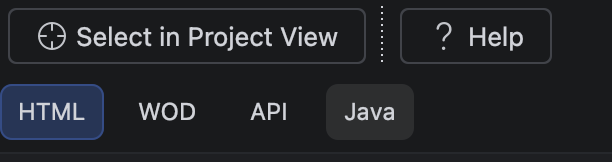
- Toolbar — Select in Project View, Go to Java Class, Help.
- Keyboard shortcuts — jump between tabs:
Ctrl+Alt+H(HTML),Ctrl+Alt+W(WOD),Ctrl+Alt+A(API),Ctrl+Alt+J(Java).
A few common dynamic elements
| Element | Purpose |
|---|---|
TBForm |
HTML form |
TBTextField |
Text input (value, placeholder) |
TBSubmitButton |
Submit button (action, value) |
TBHyperlink |
Link (action, string) |
TBConditional |
Show/hide (condition, negate) |
TBRepetition |
Loop (list, item, index) |
TBString |
Text output (value, escapeHTML) |
TBImage |
Image (src / filename + framework) |
Creating a component
Right-click a package or folder → TreasureBoat → Create TBComponent, name it, and choose which files to generate (HTML / WOD / API / Java). You get starter templates wired together. If you need to add a missing file later, Create WOD / API File does it.
Related
- The API Editor — the
.apiinterface tab - Project Layout — the
.woanatomy
#IntelliJ