IntelliJ Project Layout
So let’s take a first look at a framework project layout.
In this example we use tb-pro-rule-engine.
Overview
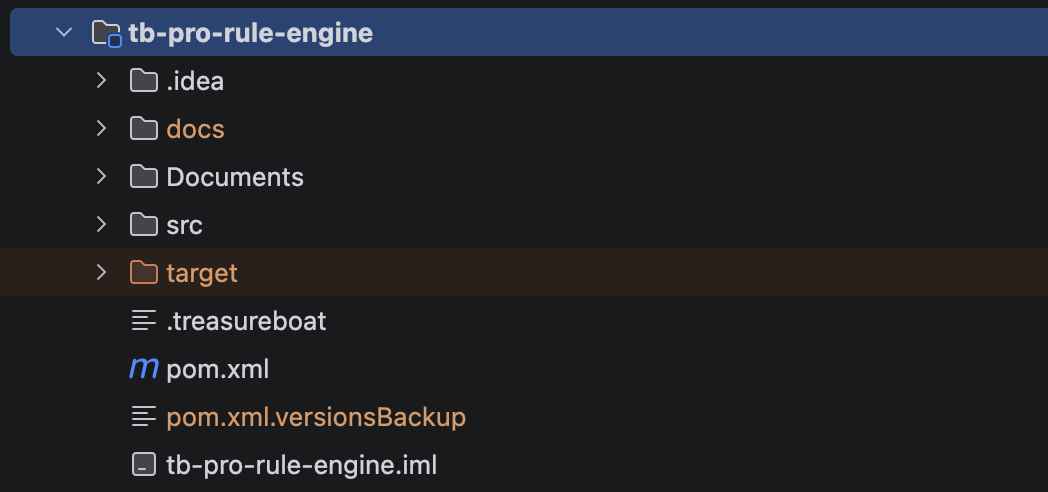
- .idea - A folder is the IntelliJ maintenance folder for all the setup and configuration
- docs - A folder is an optional folder where .sangria rule backup files get saved
- Documents – Also, here is an optional folder for your Documentation
- src – This is the real project folder (development/compile)
- target – The target folder is the compiled version of the src folder (deploy). The build also generates the bundle’s Info.plist in here (the single source of truth for bundle metadata — executable name, principal class, version), which is why you won’t find Info.plist in src.
- .treasureboat - This file has information about the project (Application or Framework). It replaces the legacy Eclipse
build.propertiesthat older, converted projects used for bundle identification. - pom.xml – The build file (Maven): dependencies, the TreasureBoat framework versions, and the build profiles.
- pom.xml.versionsBackup – A backup Maven writes when you run
versions:set(e.g. bumping the release version). Safe to delete. - {Project Name}.iml – A file that is used by IntelliJ for tracking project information
Project Layout
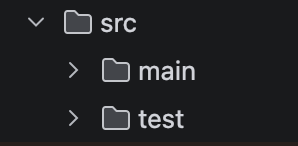
Inside the src folder you will find the following: test and main
test
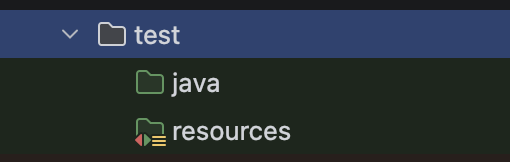
The test folder contains the unit tests for the project.
TreasureBoat supports JUnit 5 unit testing.
- java – This folder contains the Java source code for the unit tests.
- resources – This folder contains the resources for the project (e.g., images, configuration files, etc.)
main
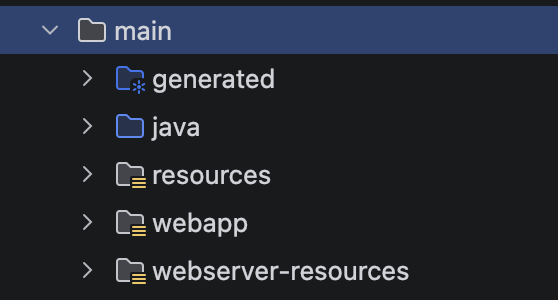
The main folder contains the source code for the project.
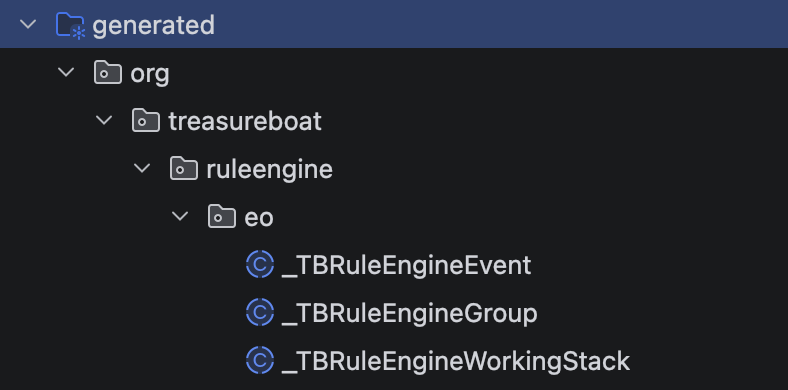
- generated – This folder contains the generated code for the project (e.g., generated classes, etc.)
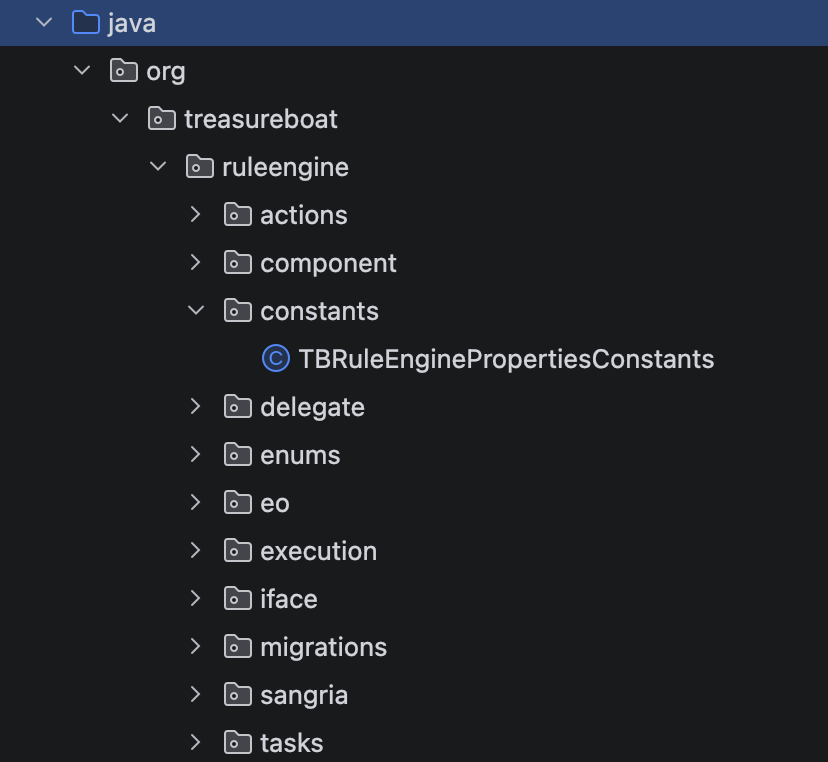
- java – This folder contains the Java source code for the project.
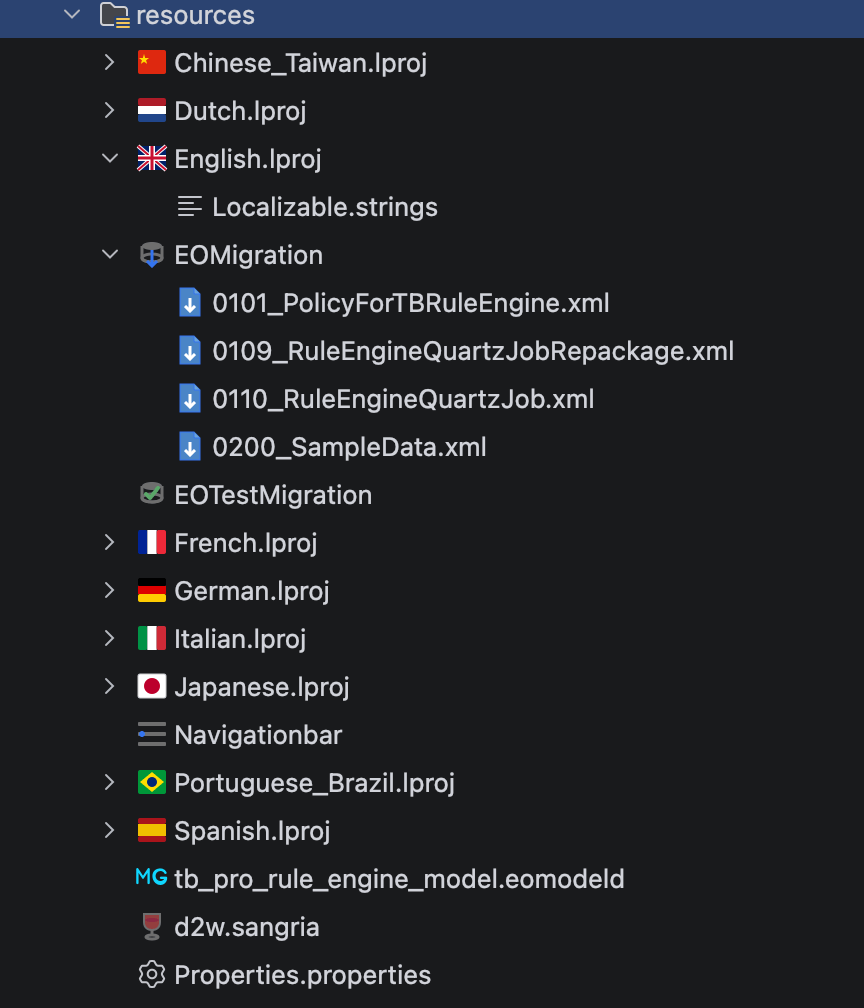
- resources – This folder contains the resources for the project (e.g., images, configuration files, etc.)
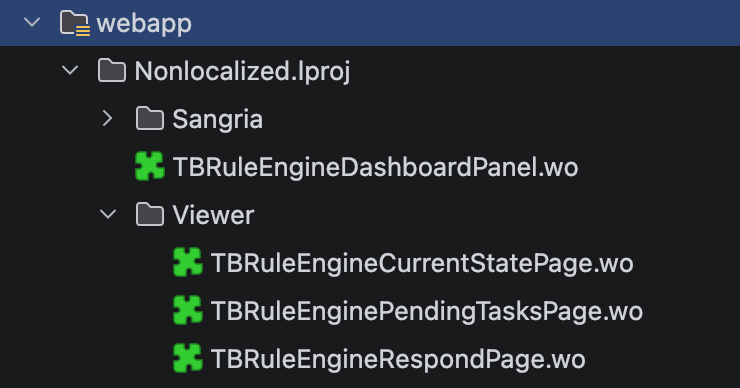
- webapp – This folder contains the Components (HTML/XML/JS …) for the project.
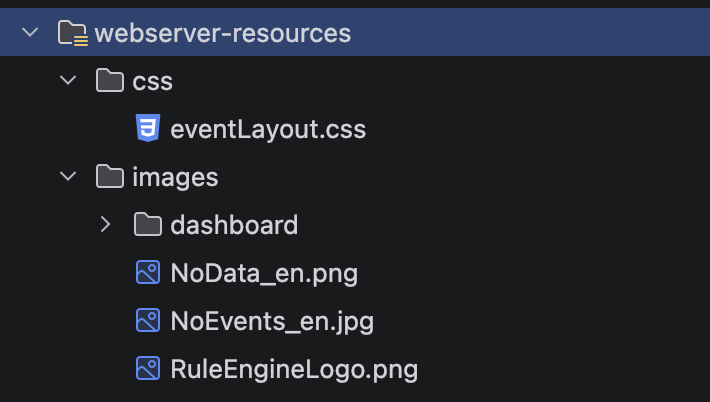
- webserver-resources – This folder contains the web server resources for the project (e.g., static files, etc.)
generated
Here you can find the generated code for the project (e.g., generated classes, etc.)
In TreasureBoat, the generated code is automatically generated by the framework and is not meant to be modified by the user.
Those files get generated by the Entity Editor EOGenerator.
Each entity produces an underscore-prefixed base class here (e.g. _MyEntity.java) that holds the KVC accessors and relationships. Never edit these — regenerating overwrites them. Your business logic goes in the matching non-underscore subclass (MyEntity.java) under java, which extends the generated base. This split lets you re-generate the model without losing your code.
java
Here you can find all your Source Code for the project.
resources
This is the folder for all the resources that are needed by the application.
Localization Files
- Chinese_Taiwan.lproj – Chinese Localization File
- Dutch.lproj – Dutch Localization File
- English.lproj – English Localization File
- French.lproj – French Localization File
- German.lproj – German Localization File
- Italian.lproj – Italian Localization File
- Japanese.lproj – Japanese Localization File
- Portuguese_Brazil.lproj – Brazil Portuguese Localization File
- Spanish.lproj – Spanish Localization File
EO Migration Files
- EOMigration – The EO Migration Files for loading data at boot time
- EOTestMigration – The EO Migration Test file for developing Migration Files
Navigation
- Navigationbar - The Navigation-bar configuration
Model
- tb_pro_rule_engine_model.eomodeld – The EO Model
Sangria
- d2w.sangria – The Sangria rule file (NeXTSTEP plist format): rule conditions (LHS)
=>property values (RHS) that drive the rule-based UI. The docs folder mentioned in the Overview keeps timestamped backups of this file.
Properties
- Properties.properties – The Properties file
webapp
Here you can find all your Components for the project (e.g., HTML/XML/JS …)
Each component is a .wo folder — a small bundle that groups the parts of one component together:
.html– the template, using<treasureboat>(or<tb:...>) tags as dynamic placeholders.wod– (optional) the bindings that wire those tags to your Java code through KVC keypaths.api– (optional) declares the component’s bindings for the Component Editor.md– (optional) documentation for the component
The folder structure inside this folder is free — group components however you like.
From older implementations there is still a NonLocalized.lproj folder, but it is not necessary anymore.
TreasureBoat is not supporting Multilanguage Components.
For Localization you should use the localizer classes.
webserver-resources
Here you can find all your web server resources for the project — static files (CSS, JS, images, fonts) that the web server serves directly, not through the application.
Reference them with a static:// URL that names the owning framework and the path inside webserver-resources, for example:
static://tb-core-skin-keen:assets/css/style.bundle.css
Because the framework name is part of the URL, one bundle can serve its assets to every app that depends on it — this is how a skin ships its CSS/JS to all apps without needing a CDN.
Application vs Framework
The .treasureboat file in the Overview records whether a project is an Application or a Framework. Both share the exact same layout you just saw — src/main with generated, java, resources, webapp, and webserver-resources. What differs is what the bundle is and how it runs:
| Framework | Application | |
|---|---|---|
| Purpose | A library other projects depend on — models, components, a skin, features | A runnable app that ties frameworks together |
| Bundle type | FMWK — a .framework, pulled in as a Maven dependency |
APPL — a runnable .woa bundle with JARs + run scripts |
| Principal class | extends TBEnterpriseFrameworkPrincipal — a setup hook that runs when the bundle loads |
the app’s Application class (extends TBApplication) — the entry point |
| Info.plist (in target) | target/classes/Resources/Info.plist |
target/classes/Info.plist |
Typical resources |
shared EO models, components and migrations for consumers to use | the above plus real deployment Properties (DB connection), boot-time EO migrations, and app config |
Our example, tb-pro-rule-engine, is a framework: it ships a rule-engine model and components that applications depend on. An application depends on it (and many other frameworks) and adds its own screens, data, and deployment configuration on top.
#IntelliJ