The EO Migration Editor
TreasureBoat has two things with “migration” in the name, and they are easy to mix up. Let’s separate them first, because this post is only about the second:
| Schema Migration | EO Migration (this post) | |
|---|---|---|
| Made with | the Generate Migration button in the Entity Editor | the Migration Editor (opens the .xml file) |
| Produces | a .java class |
an .xml file |
| Purpose | sync the database structure — create tables, add columns, indexes, foreign keys | create / update / delete data (EO instances) at boot |
So: schema migrations change the shape of the database; EO migrations put
data in it (or change/remove data). This editor is for the second kind — the
.xml files under EOMigration/ and EOTestMigration/ you saw in the
Project Layout post.
What an EO migration is
An EO migration is a small .xml file that runs at application boot and
creates, updates or deletes Enterprise Objects — the seed data your app needs to
exist: CMS pages, roles, policies, navigation bars, scheduled jobs, and so on.
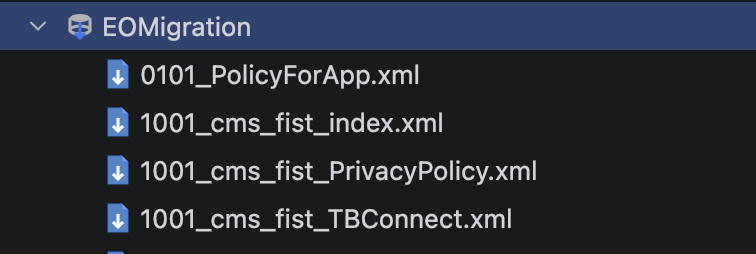
- Files live in
EOMigration/(all environments) orEOTestMigration/(dev/test only). - They are numbered (
1001_…,0101_…) and run in order. - Once a migration has shipped it is immutable — you never edit an old file; a new change goes in a new numbered file. (The numbers are a permanent, ordered history.)
File Settings
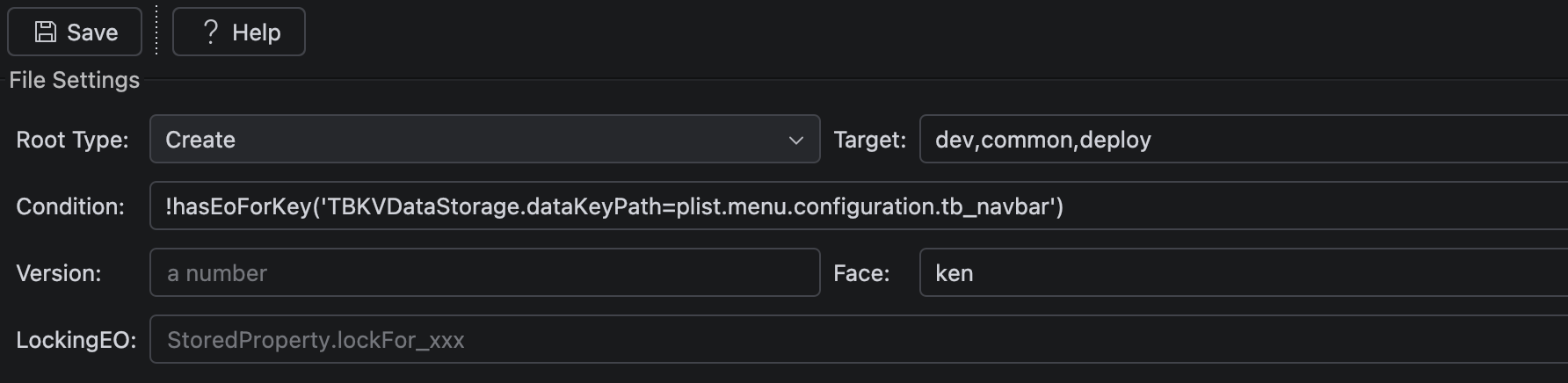
Each file is one operation block, configured at the top of the editor:
- Root Type – the operation for the whole file: Create, Update, Delete, or SaveChanges
- Target – which environments it applies to, e.g.
dev,common,deploy - Condition – an idempotency guard: the block only runs if the condition is true. Typically
!hasEoForKey('TBPolicy.<uuid>')— “only create this if it isn’t already there.” This is what makes it safe for the migration to run on every boot without duplicating data. - Version – (optional) a model version the migration targets
- Face – (optional) limit the migration to specific faces, e.g.
{FaceId1},{FaceId2} - LockingEO – (optional) a stored property to lock on while the migration runs
Good to know: keep one operation block per file. Splitting a file into several blocks does not execute reliably — make a separate numbered file instead.
The EO list (left)
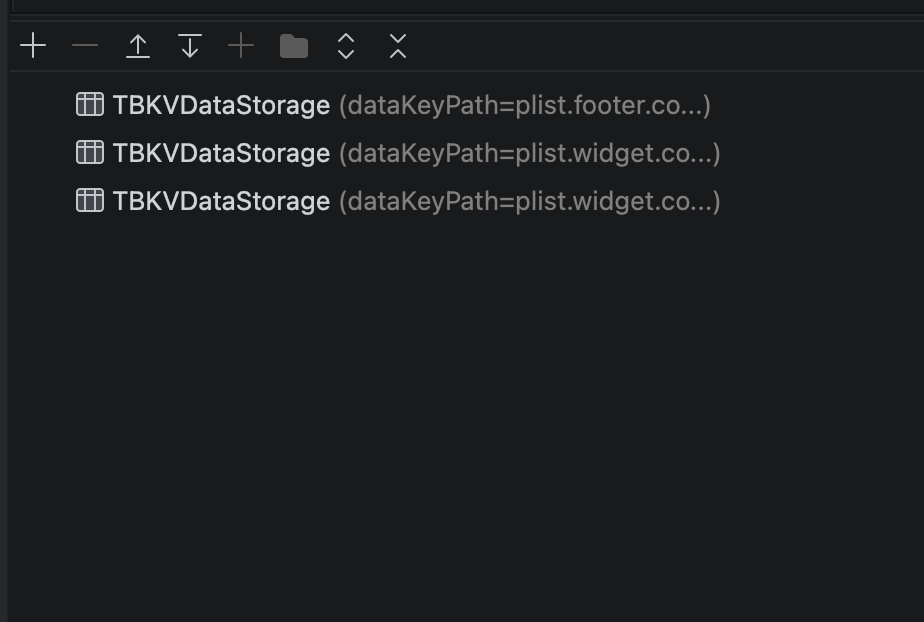
Below the settings is the list of Enterprise Objects the operation acts on — each
row is one object, shown as Entity (identifier), for example
TBPolicy (show.navigation). The small toolbar above the list adds, removes and
reorders rows.
Properties / XML Preview (right)
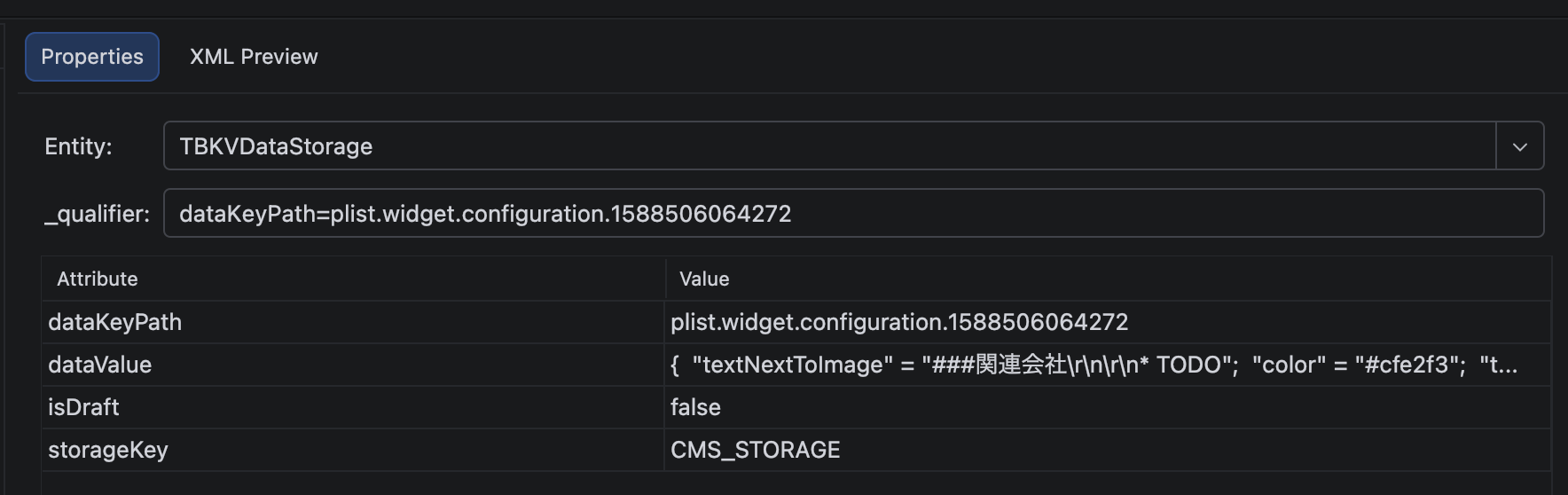
Select a row and the right side gives you two tabs:
- Properties – edit the object:
- Entity – the EO entity type (e.g.
TBKVDataStorage) _qualifier– the key that identifies this object. ForCreateit’s the identity used by theConditioncheck; forUpdate/Deleteit’s how the migration finds the existing object to change.- Attribute / Value table – the field values to set
- Entity – the EO entity type (e.g.
- XML Preview – the exact XML that will be written to disk. Always worth a glance before saving.
The four operations
| Root Type | What it does |
|---|---|
| Create | Insert new EO instances (guarded by Condition so it won’t duplicate) |
| Update | Change existing instances, found by _qualifier |
| Delete | Remove existing instances, found by _qualifier |
| SaveChanges | Commit the accumulated changes |
Related
- The Entity Editor — and its Generate Migration button (the schema migration, the other kind)
- Project Layout — where
EOMigration/andEOTestMigration/live - The Schema Migrations — editing the Schema migration files (next post)
#IntelliJ