The Entity Editor
In the Project Layout post we saw the
resources folder holds an .eomodeld — the EO Model. This post is about the
editor you use to work with it.
An EOModel is TreasureBoat’s object-relational mapping: it describes your
entities (tables), their attributes (columns), and the relationships (joins)
between them — declaratively, as data, not as annotations in your Java code.
Open an .eomodeld and the plugin gives you a visual Entity Editor instead
of raw plist files.
What an EOModel is
An .eomodeld is not a single file — it is a bundle (a folder) of plist
files in NeXTSTEP format:
index.eomodeld– the model metadata (connection info, naming conventions)- one
.plistper entity – that entity’s attributes, relationships and fetch specs
You never have to edit those plists by hand. That is what the editor is for.
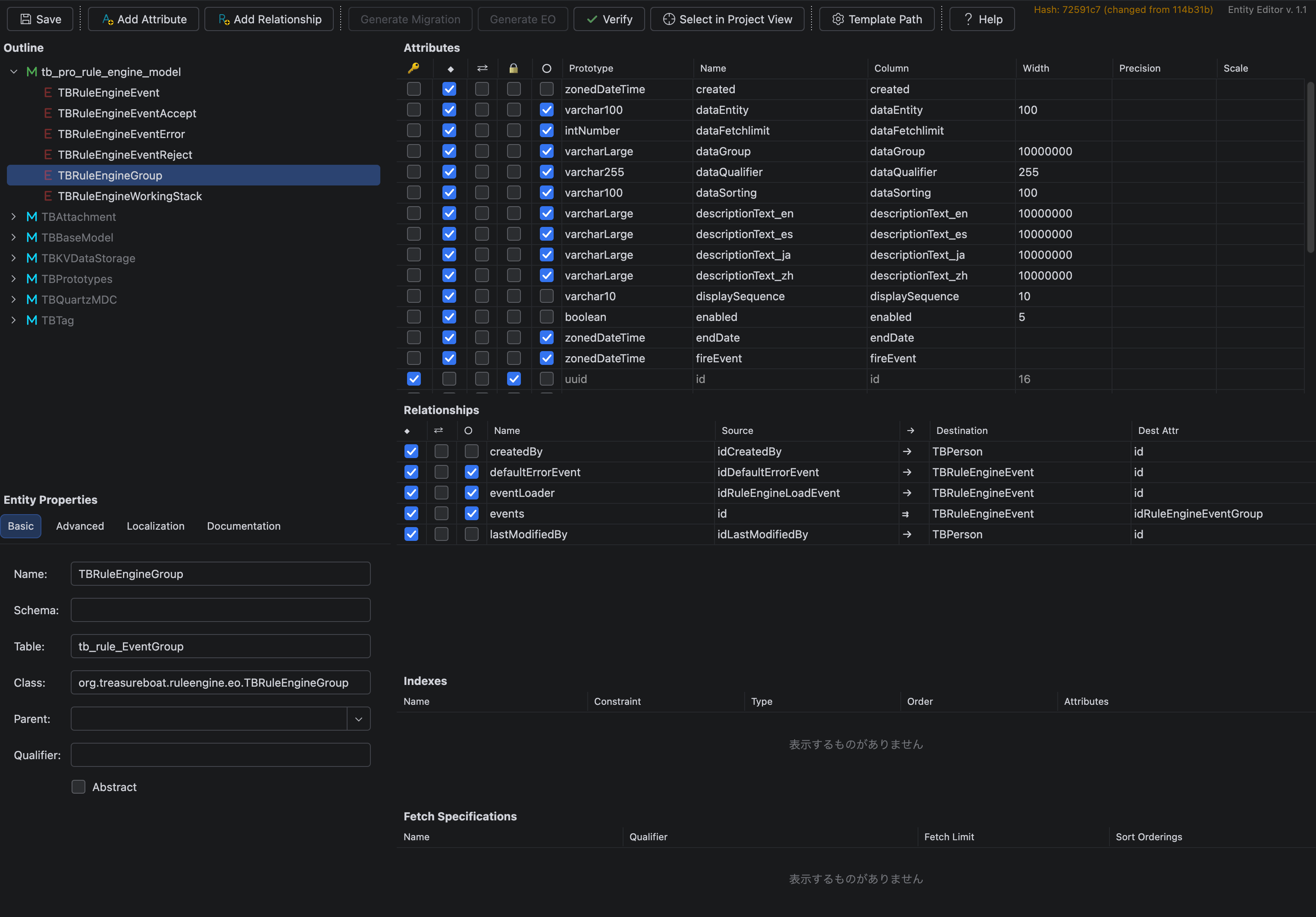
Editor Layout
The editor has two panels: the tree on the left and the property panel on the right.
Entity Tree (left)
The tree shows the whole model structure:
- Model – the
.eomodeldbundle (root)- Entity – each entity in the model
- Attributes – the columns
- Relationships – the joins to other entities
- Fetch Specifications – predefined, named queries
- Indexes – database indexes
- Entity – each entity in the model
Right-click a node to add or delete entities, attributes, relationships, fetch specs and indexes, or to create a subclass of an entity.
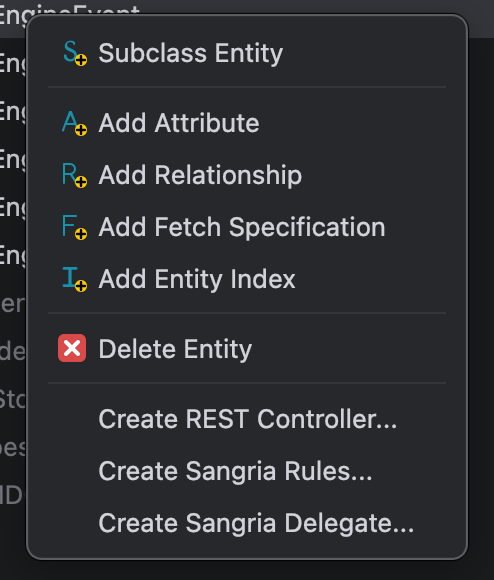
Also you can create following files when needed:
- Create REST Controller…
- Create Sangria Rules…
- Create Sangria Delegate…
Property Panel (right)
Select any node and the right panel shows its properties for editing — the attribute’s column and type, the relationship’s destination and delete rule, and so on.

Toolbar
| Button | What it does |
|---|---|
| Save | Write all changes back to the .eomodeld plists |
| Add Attribute | Add a column to the selected entity |
| Add Relationship | Add a join from the selected entity |
| Generate Migration | Create a migration file for the model changes (see below) |
| Generate EO | Generate the Java classes from the model |
| Verify | Check the model for consistency errors before you save |
| Select in Project View | Jump to the .eomodeld folder in the Project View |
| Template Path | Choose the Velocity templates used by Generate EO |
| Help | Open this editor’s built-in help |

The properties that matter
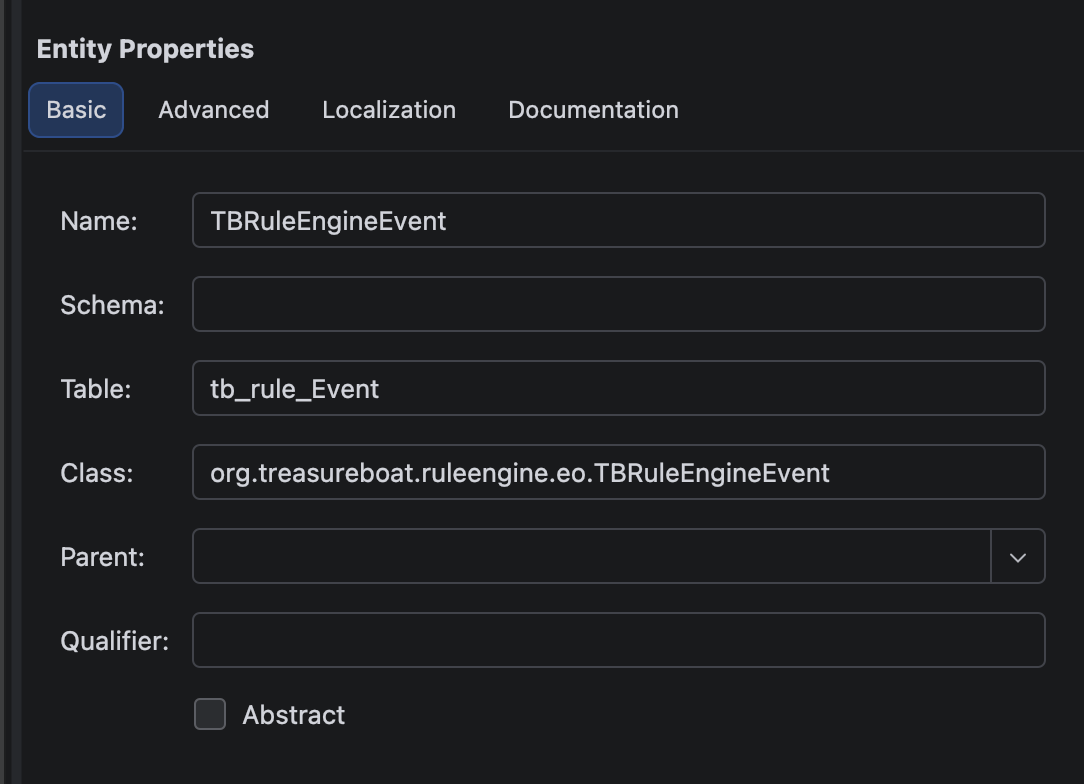
Entity
| Property | Description |
|---|---|
| name | The entity name (maps to a Java class) |
| tableName | The database table |
| className | The fully-qualified Java class name |
| parentName | Parent entity, for inheritance |
| isAbstractEntity | Abstract entity — no table of its own |
Basic Panel
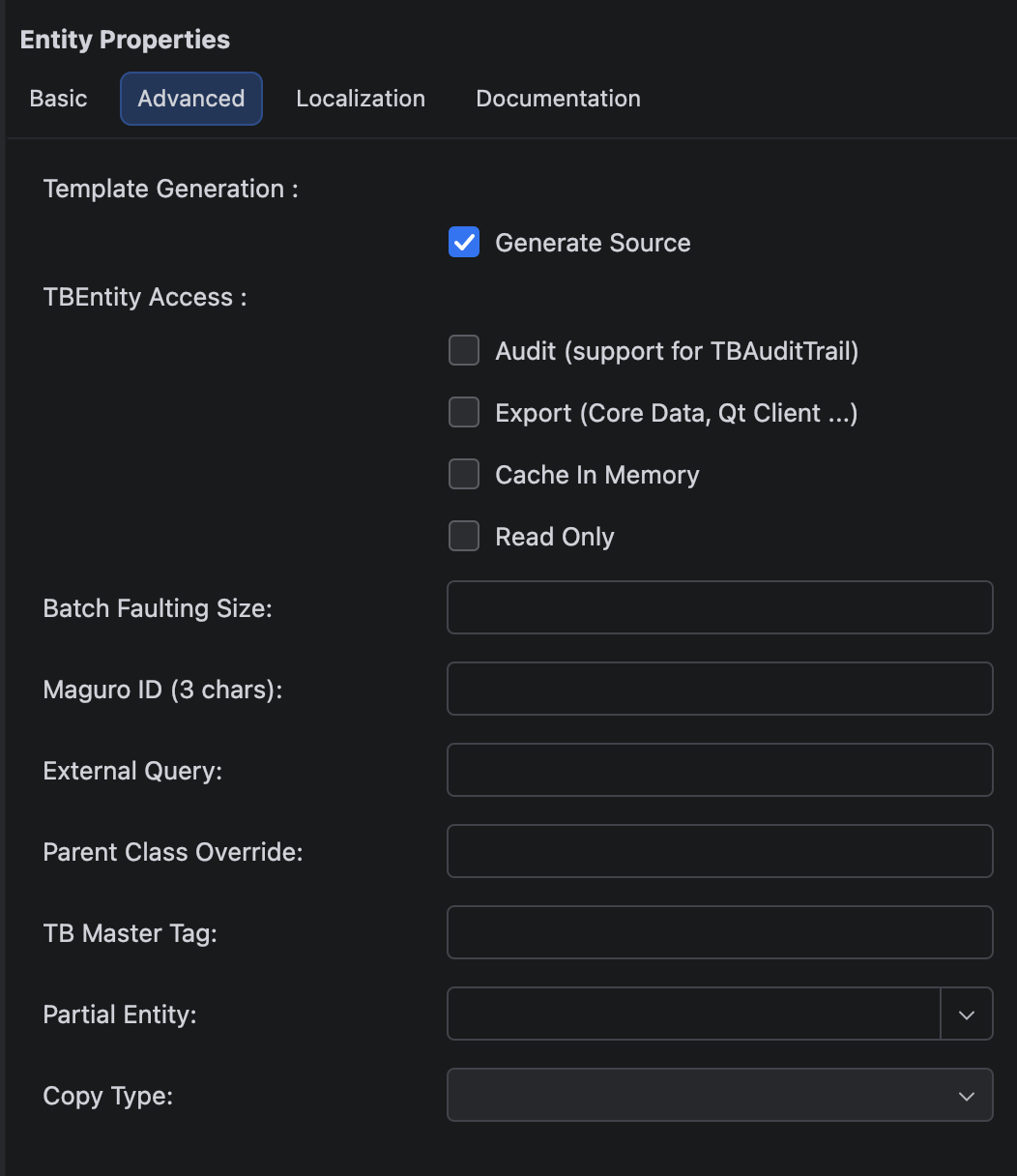
Advanced Panel
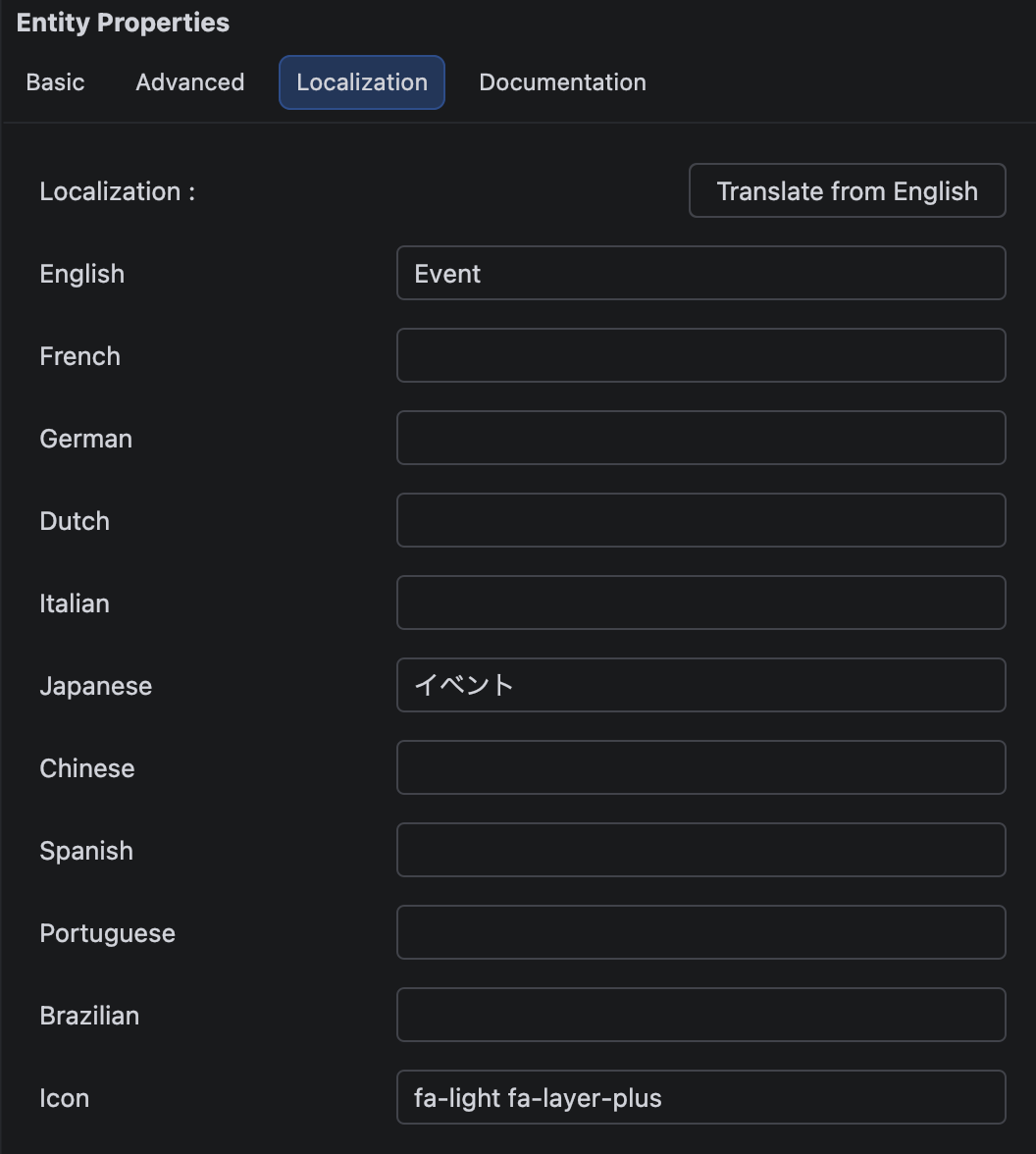
Localization Panel
Attribute
| Property | Description |
|---|---|
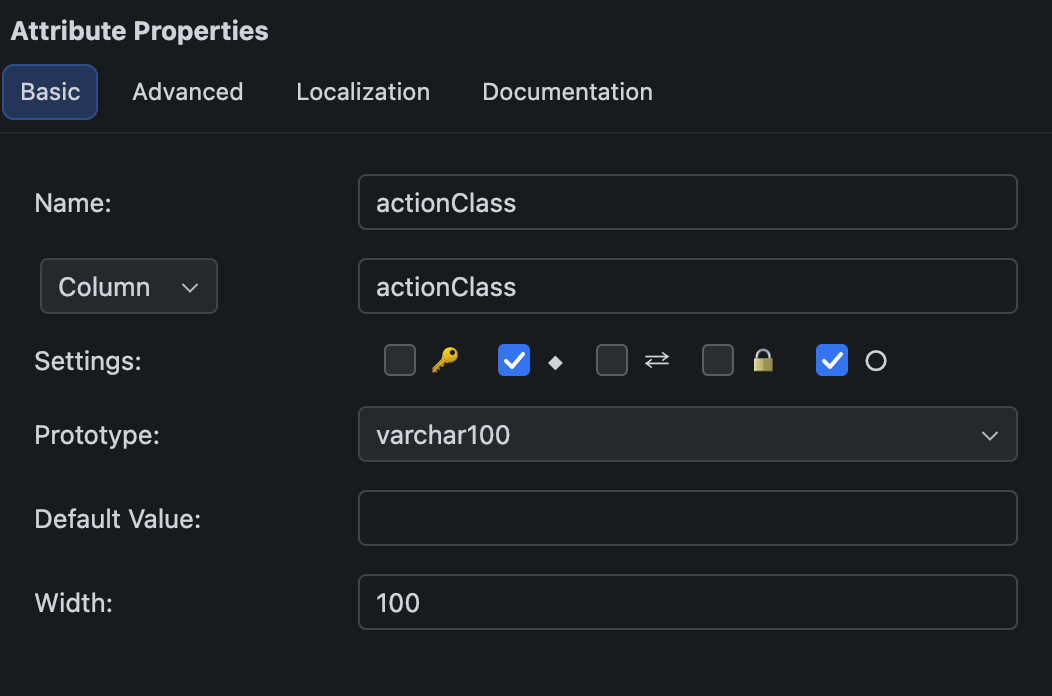
| name | The attribute name (maps to a Java accessor) |
| columnName | The database column |
| isPrimaryKey | Part of the primary key |
| isClassProperty | Whether it is exposed as a Java property |
| allowsNull | Whether the column accepts NULL |
| prototype | The database prototype. |
Good to know: only attributes marked isClassProperty get a Java accessor. A column that exists in the table but is not a class property (a raw foreign-key column, for example) stays in the model but never shows up as a method on your EO.
What is a prototype? A prototype is a named template that bundles a column’s database type, Java value type and width together. Instead of setting each of those by hand, you pick a prototype (
uuid,varchar255,date, …) and the attribute inherits all of it. One gotcha worth remembering: theuuidprototype defaults the column name touuid, so for auuidprimary or foreign key you must setcolumnName = idexplicitly — otherwise the generated SQL fails with “column uuid does not exist”.
Basic Panel
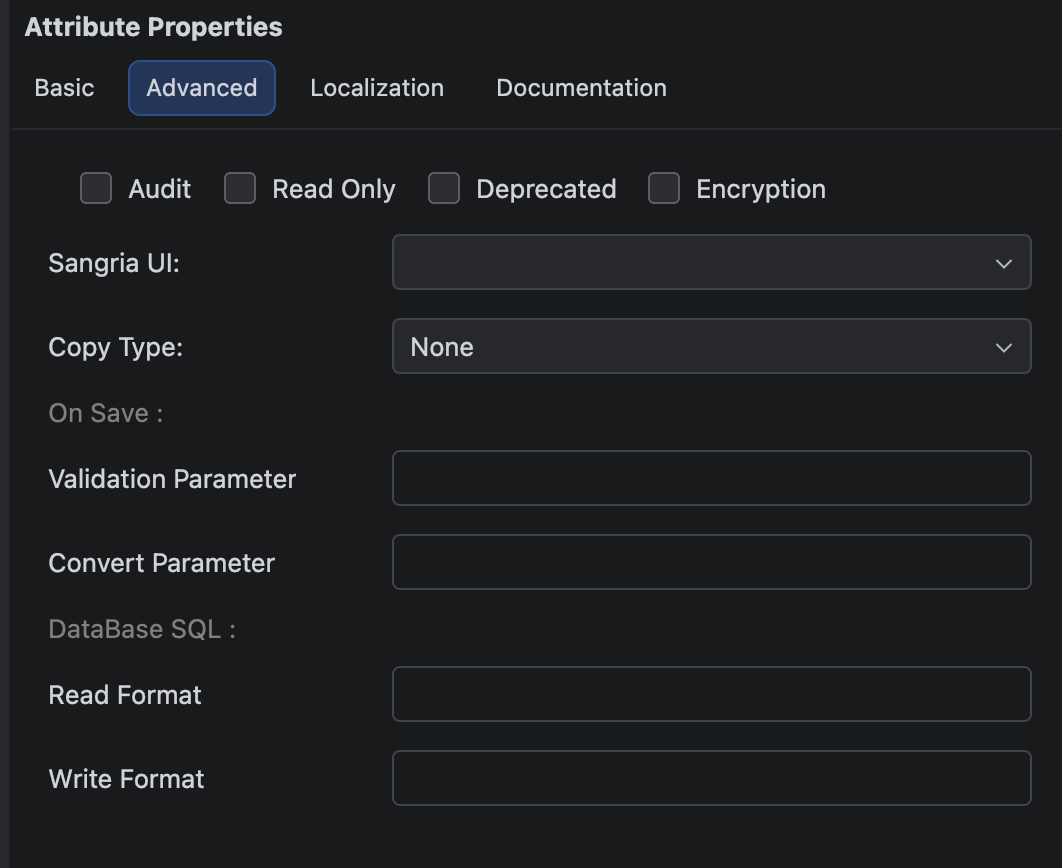
Advanced Panel
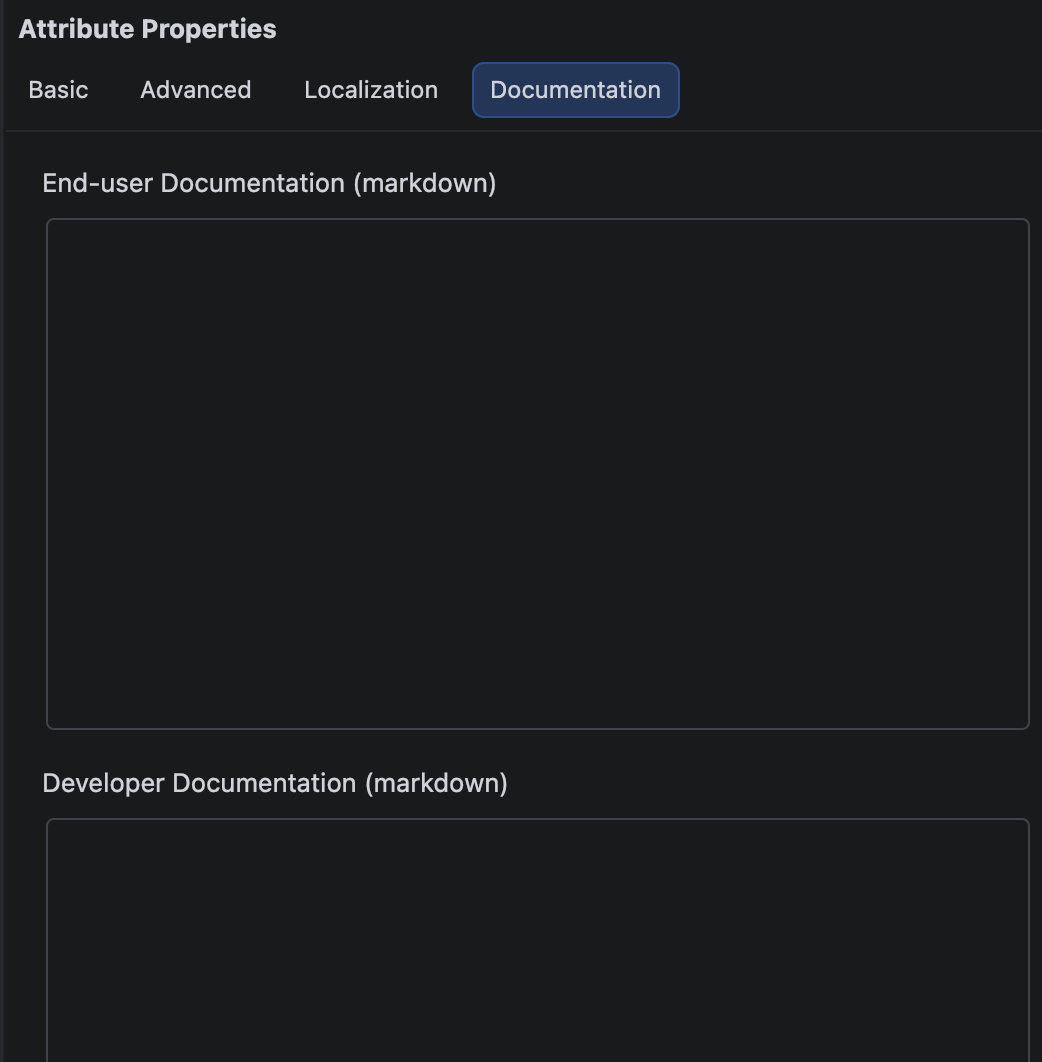
Documentation Panel
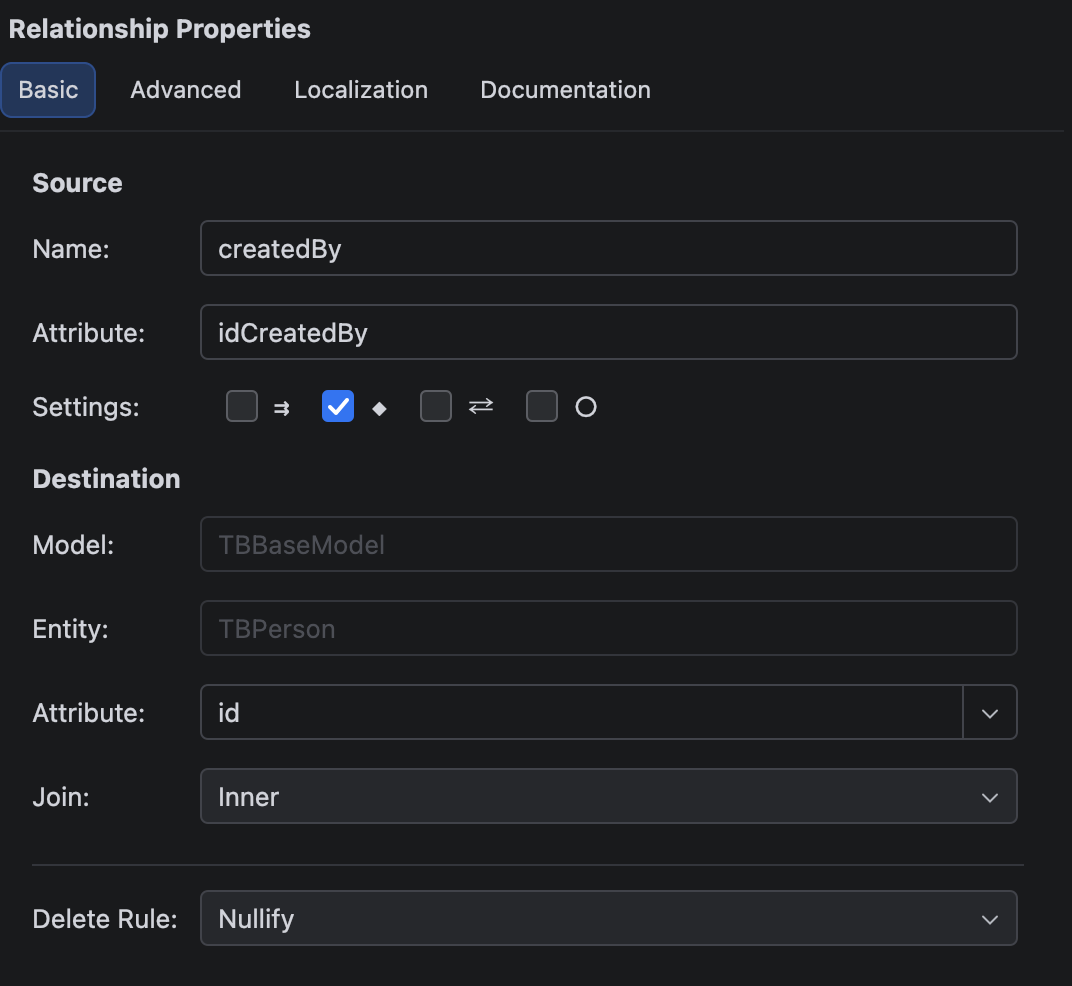
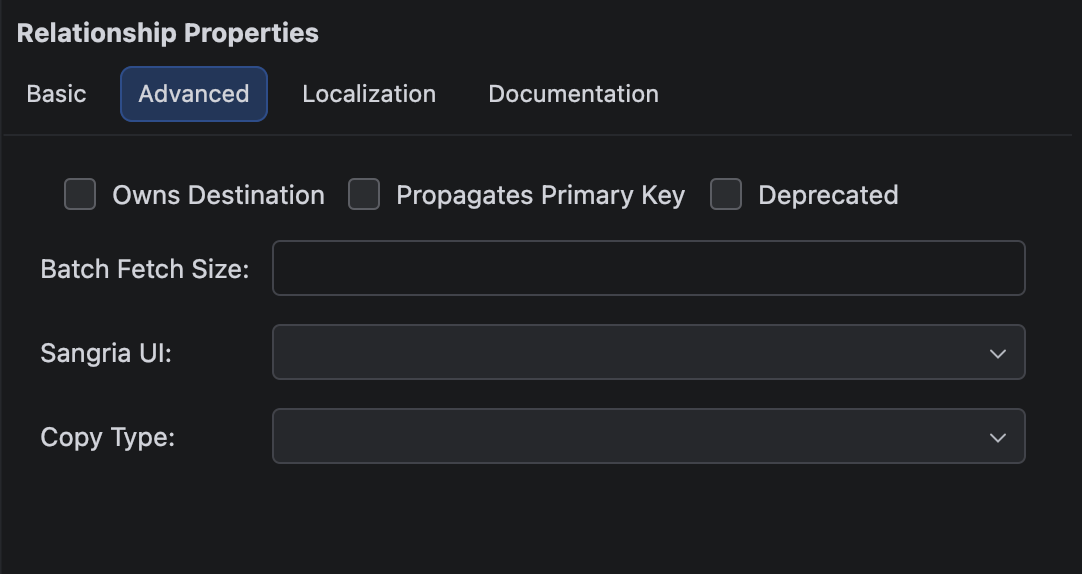
Relationship
| Property | Description |
|---|---|
| name | The relationship name |
| destination | The target entity |
| isToMany | To-one (a single object) or to-many (an array) |
| deleteRule | What happens to the other side on delete: Nullify, Cascade, Deny, No Action |
Basic Panel
Advanced Panel
The Entity Hash
The toolbar shows a small hash for the selected entity. It is a fingerprint of the entity’s structure — its attributes, relationships and types. Its colour tells you whether the structure has changed since the last saved migration:
- Gray – matches the saved hash (no structural change)
- Orange – differs from the saved hash (structure changed — you probably need a new migration)
- Blue – new, no saved hash yet
Click the hash to copy it to the clipboard.

Good to know: the hash is your reminder to keep the database in step with the model. When it turns orange, that is the cue to press Generate Migration.
From model to code — Generate EO
Generate EO turns the model into Java, using the Velocity templates set by
Template Path. This is what fills the generated/ folder from the
Project Layout post: for each
entity it writes an underscore base class (_MyEntity.java) with the KVC
accessors and relationships. You never edit those — regenerating overwrites
them. Your business logic goes in the matching MyEntity.java subclass under
java, which extends the generated base.
So the everyday loop is:
- Edit the entity in the tree.
- Watch the hash go orange.
- Generate Migration to bring the database along.
- Generate EO to bring the Java classes along.
- Save.
Related
- Project Layout — where the
.eomodeldlives - The Migration Editor — editing the migration files this editor generates (next post)
#IntelliJ