Two Factors Authentication
First Login into the application. After that we are authenticated and we know the user credentials and of
course we know all the Server information.
This is the best timing for setting up the Two-Factor Authentication.
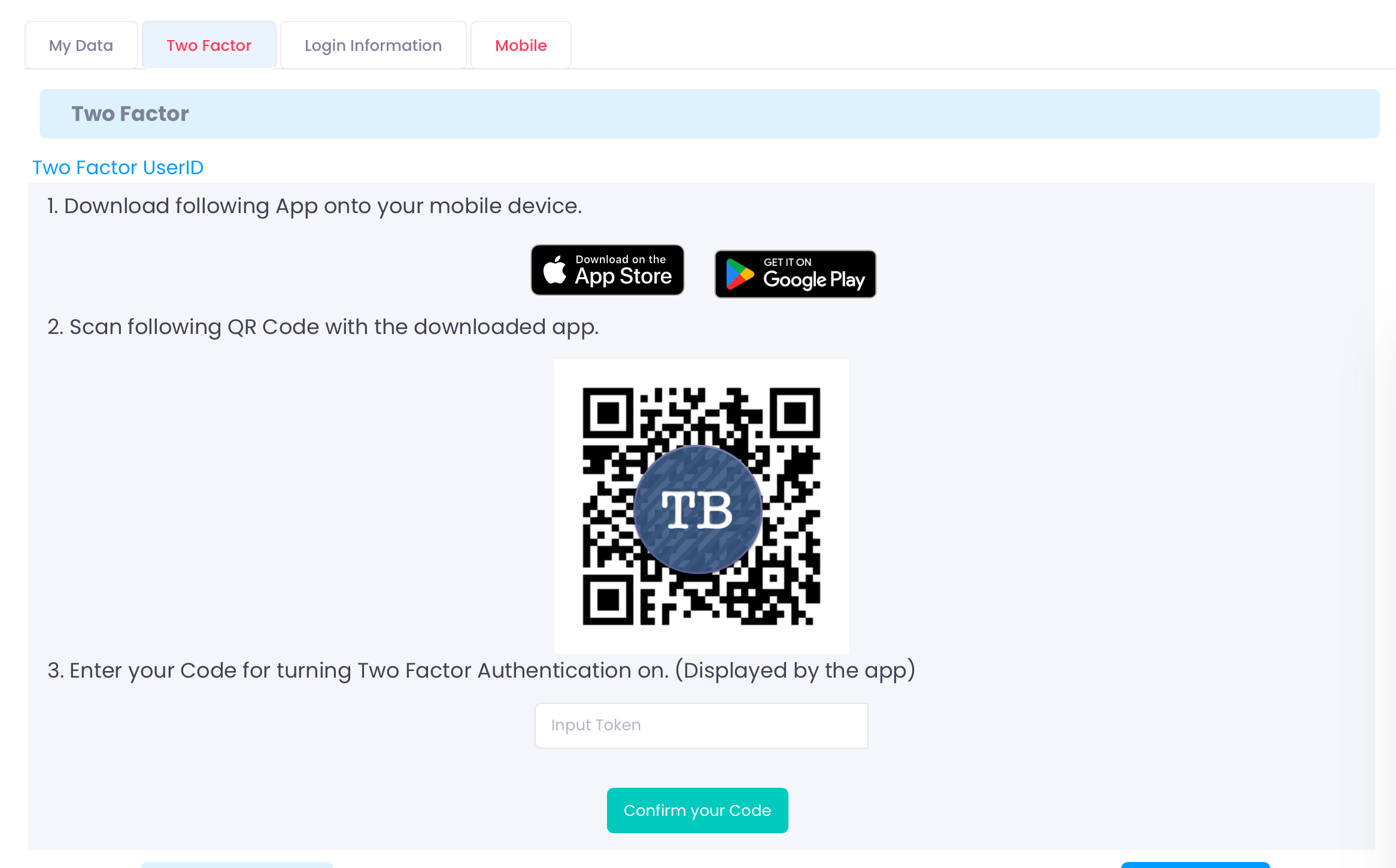
1. Download
So on the Screen bellow, you have currently two options of Mobile Authenticater apps to download:
- iOS → Twilio Authy
- Google Play → Twilio Authy Authenticator
Because the link can be different for a country depending on the language.
The current solution is it is backed into the Localization.
- TBWTwoFactor.Path.AppStore (iOS)
- TBWTwoFactor.Path.GooglePlay (Android)
And now we can use TreasureBoat Mobile for handling 2FA. You can use your tool what you like most. However, the one difference is TreasureBoat Mobile knows that it is a TB application, so it displays a correct Logo and will provide QuickLogin and other upcoming features like Push Notification and more.
2. Scan the QR Code
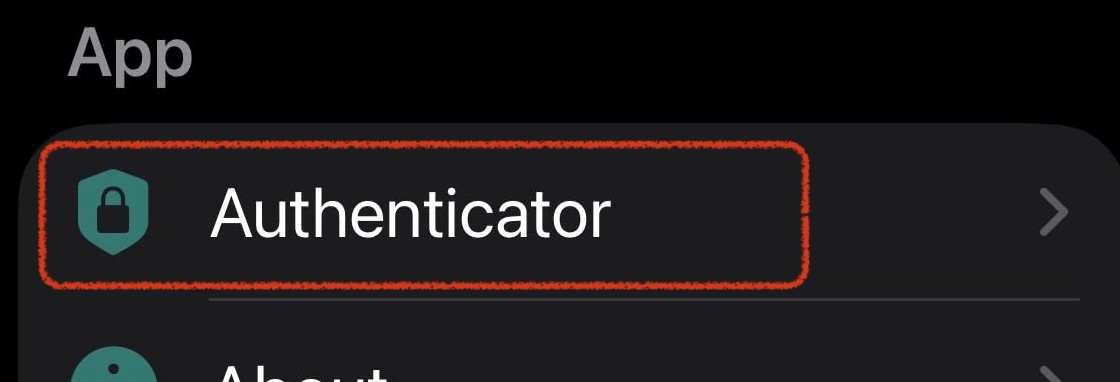
Click on the Authenticator Navigation to scan the QR Code.
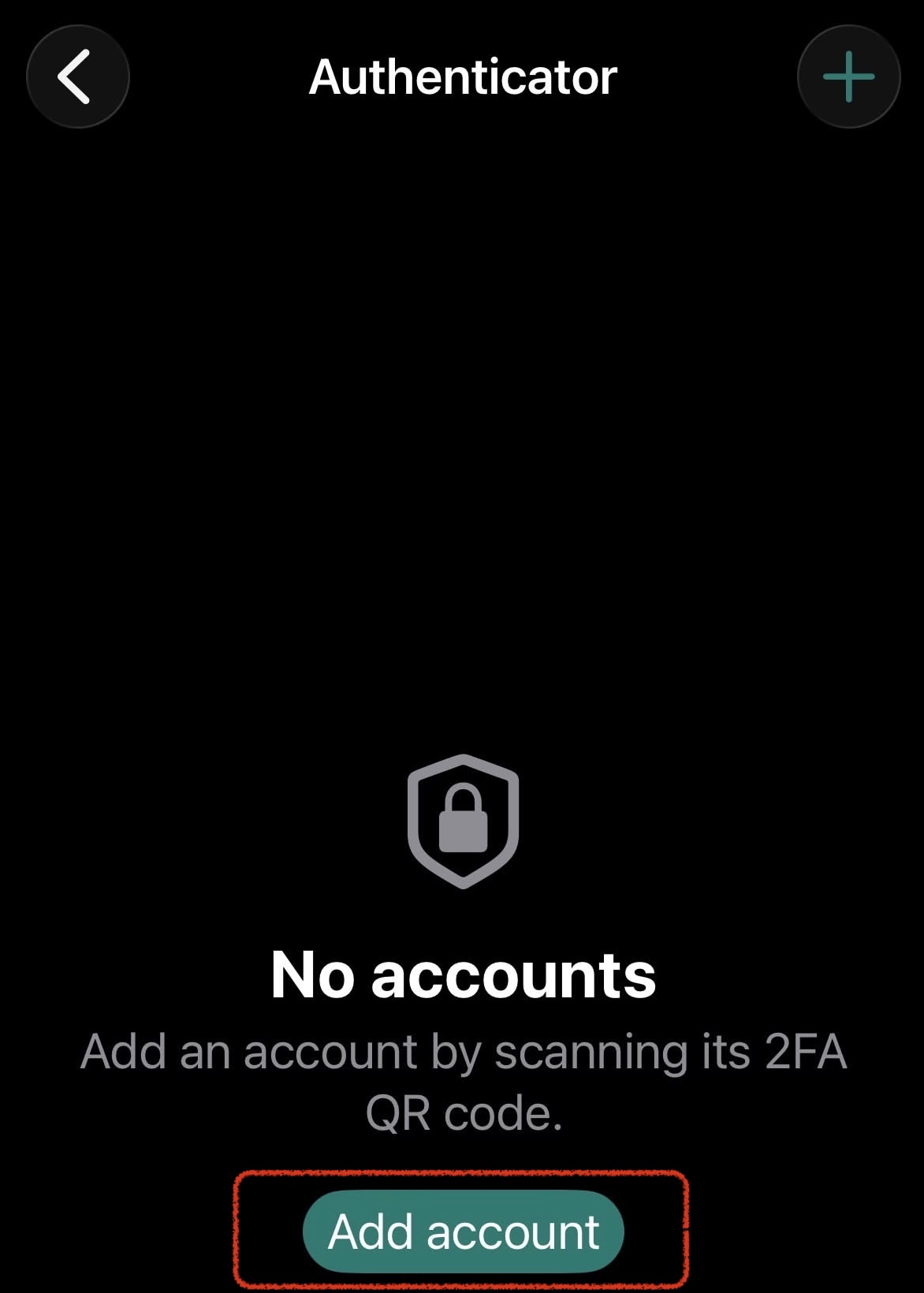
On the Authenticator Screen you will see a button to add an account. Click on it.
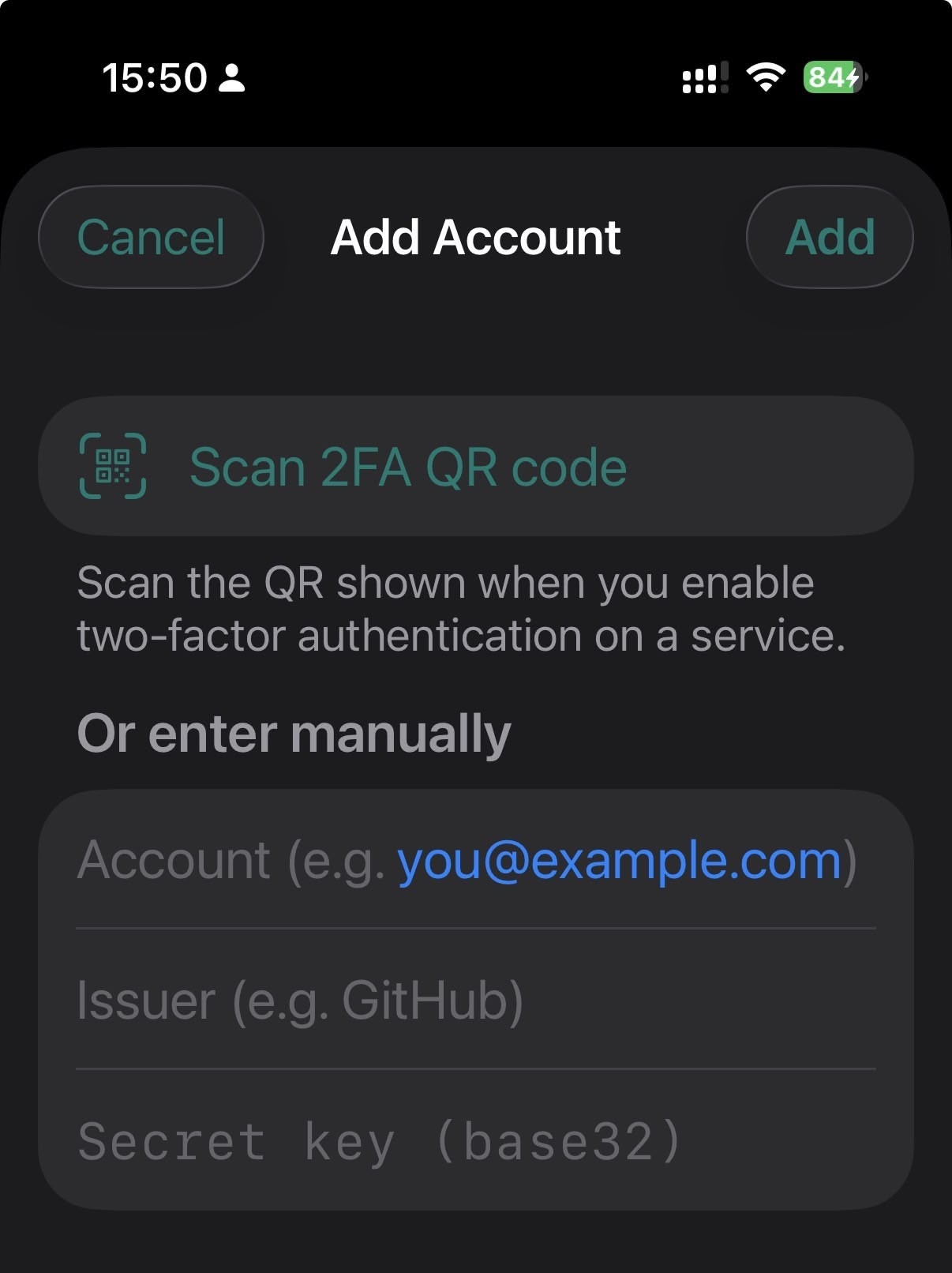
The Add Account Screen has a Scan 2FA QR Code. Click on it to scanning the QR Code.
In some situations it is possible to add your account manually.
The data gets saved into the Key Chain.
When you click on this Button, the Camera will start scanning the QR Code.
After a successful scan, you will see a list of accounts.
Providing a Logo for your TB Server makes it possible to identify your server.
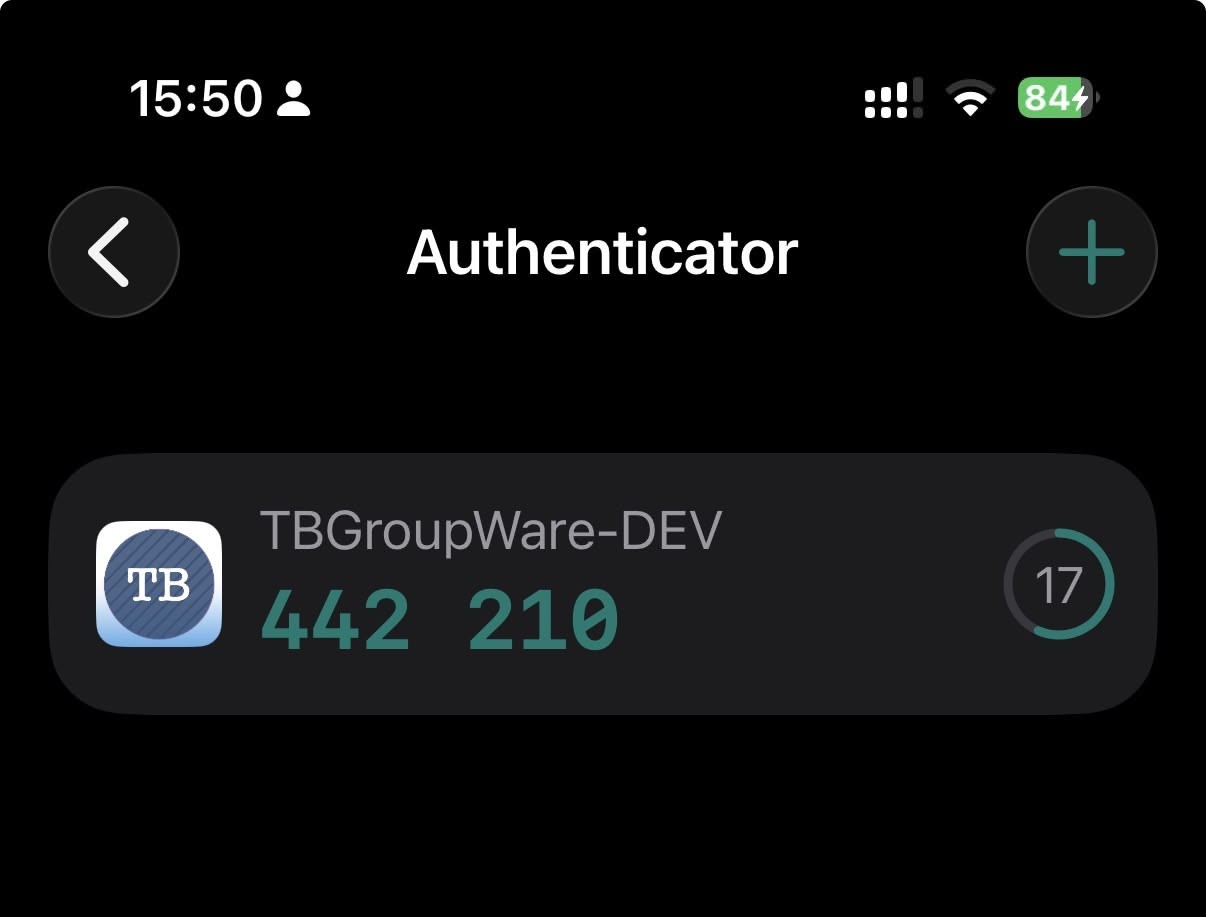
3 Enter Code to verify correctness
Add the code into the field and click on the Confirm your Code Button.
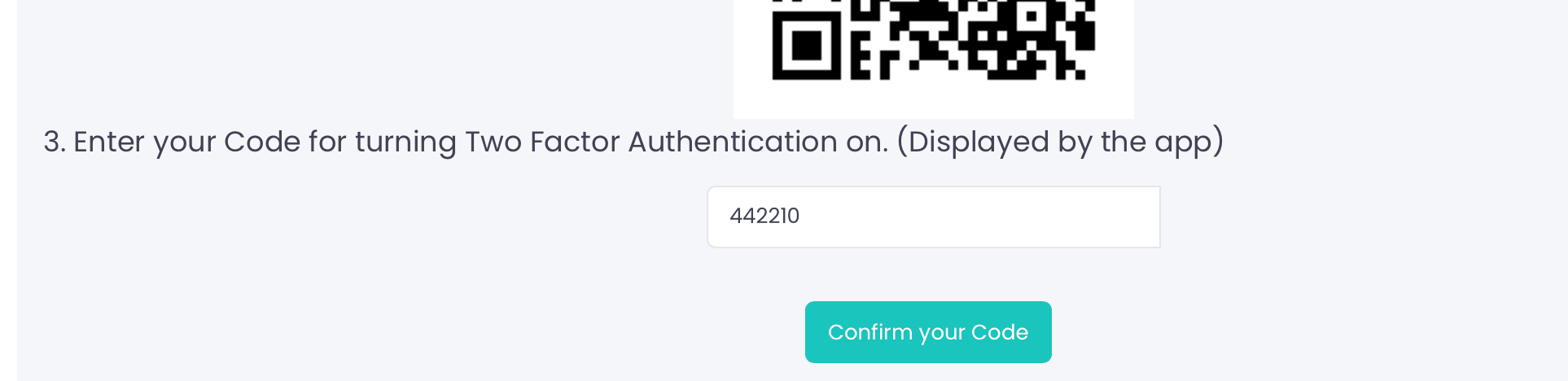
If this is successful, you will see Two-Factor Authentication is on message.
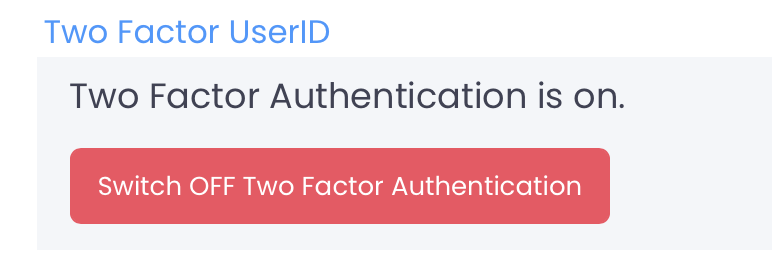
Also, now you have this red button to disable 2FA.
#Mobile #Authentication