Server Side Setup and Preparation for Authorization
Before we start, please make sure you have the latest version of the S2M app installed on your device.
If the application is not released yet, you can download the latest version from Testflight. (Coming soon)
On the Web App, the entrance to all this features are in the EditMyself section.

Clicking on this Button will show the User Information Panel.
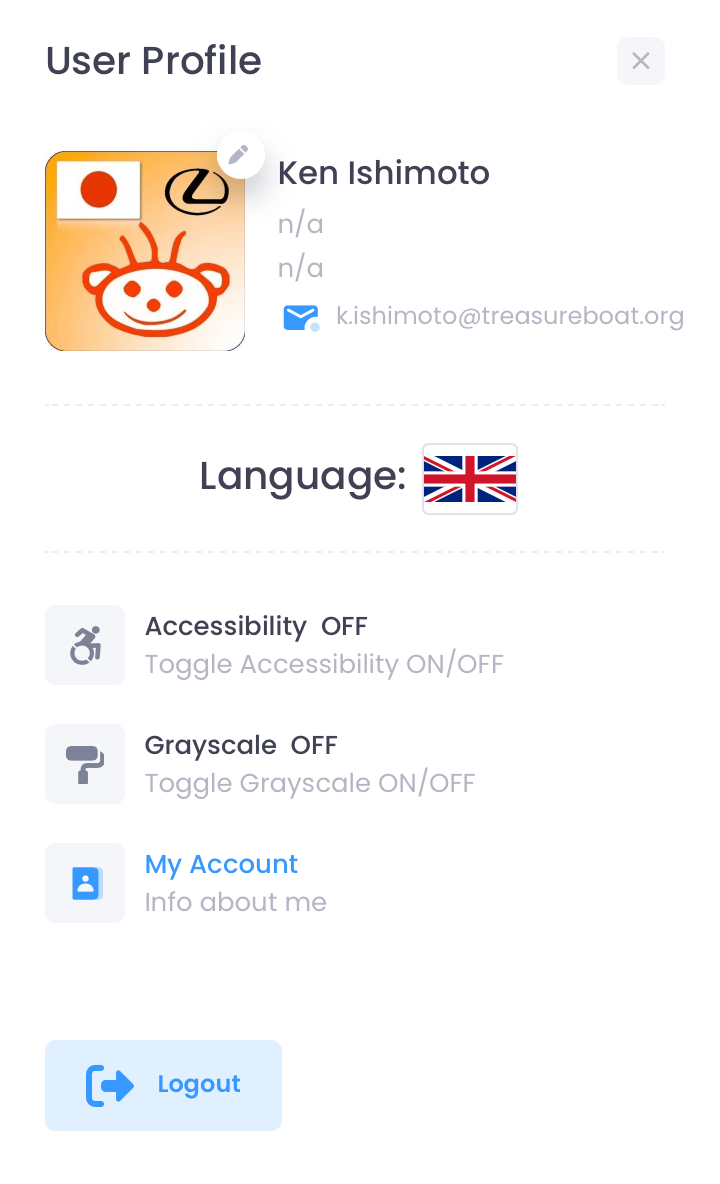
Bellow the Accessibility Features, you will find the My Account section.
To switch on EditMyself add the Policy to a Role
Policy.TBWebCore.edit.myself
Clicking on the My Account button will show the Sangria Page: EditMySelfTBPerson.
There are two new kinds of rules inside the Frameworks:
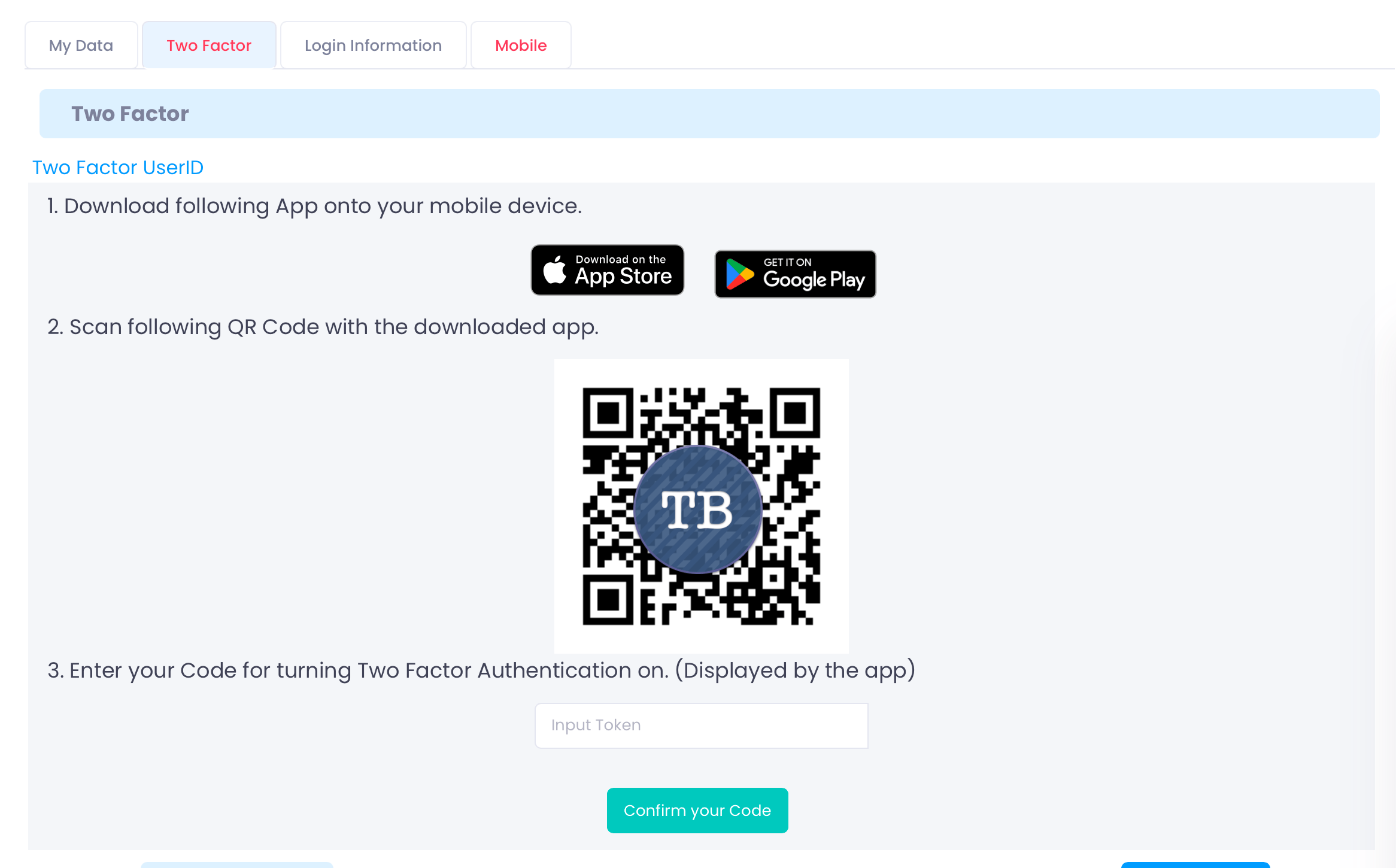
Two-Factor Authentication
945 : EN = 'TBPerson' => tabTwoFactor = ("[TwoFactor@property=org.treasureboat.twofactor.allowed]", "(TwoFactor)", "twoFactorUserID") [Assignment]
How to setup on your Server
This can be used with tabInject to inject them into the EditMySelfTBPerson page.
1000 : (EN = 'TBPerson' and PC = 'EditMySelfTBPerson') => tabInject = ("tabTwoFactor") [Assignment]
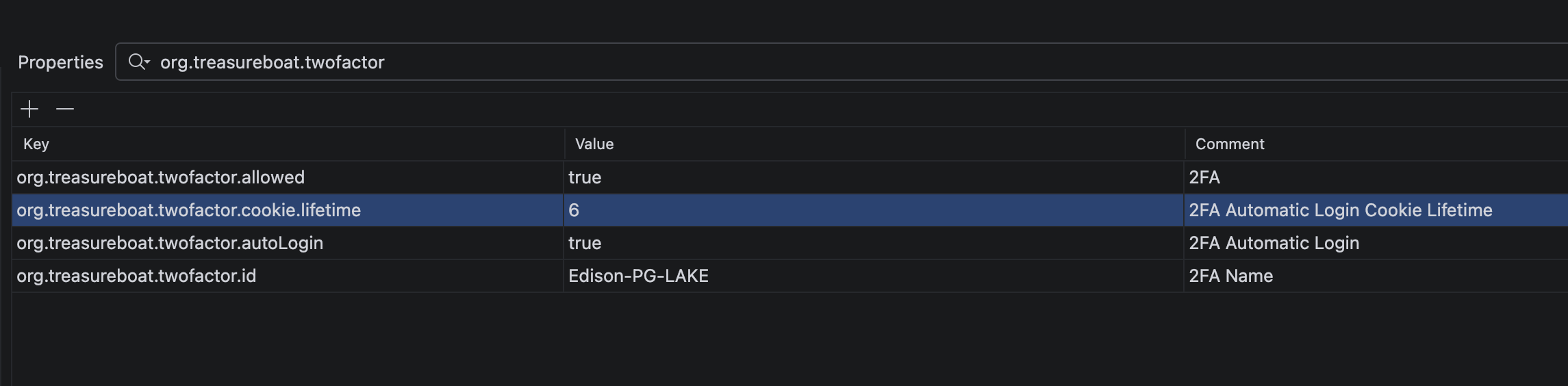
Properties:
To switch Two Factor for an application ON, this property has to be set to true. [false] mandatory
org.treasureboat.twofactor.allowed=true
To secure and encrypt the data on disk [false] optional
org.treasureboat.twofactor.secure=true
The text that gets displayed on the device [TreasureBoat] optional
org.treasureboat.twofactor.id={YourAppName}
true – allow auto login, false – will not allow auto login and ask all info every time [true] optional
org.treasureboat.twofactor.autoLogin=true
The time of the two-factor cookie lifetime in hours [336 hours (14 days)]
org.treasureboat.twofactor.cookie.lifetime=6
The component name for force TwoFactor switching [TBKeenForceTwoFactor]
org.treasureboat.twofactor.force
Sample setup in FaceID Editor
#Mobile #Authentication