Mobile App – No Connection
Let’s talk about the plain version of the Mobile App, because first it is not connected to any servers.
So what can it do and how does it look?
The application will be prepared for TestFlight, and later released.
The Icon
The Name
The name might change in the future, but for now the Project is called MTBMobile.
Navigation
The Navigation is basic; it has only one page, with several links.
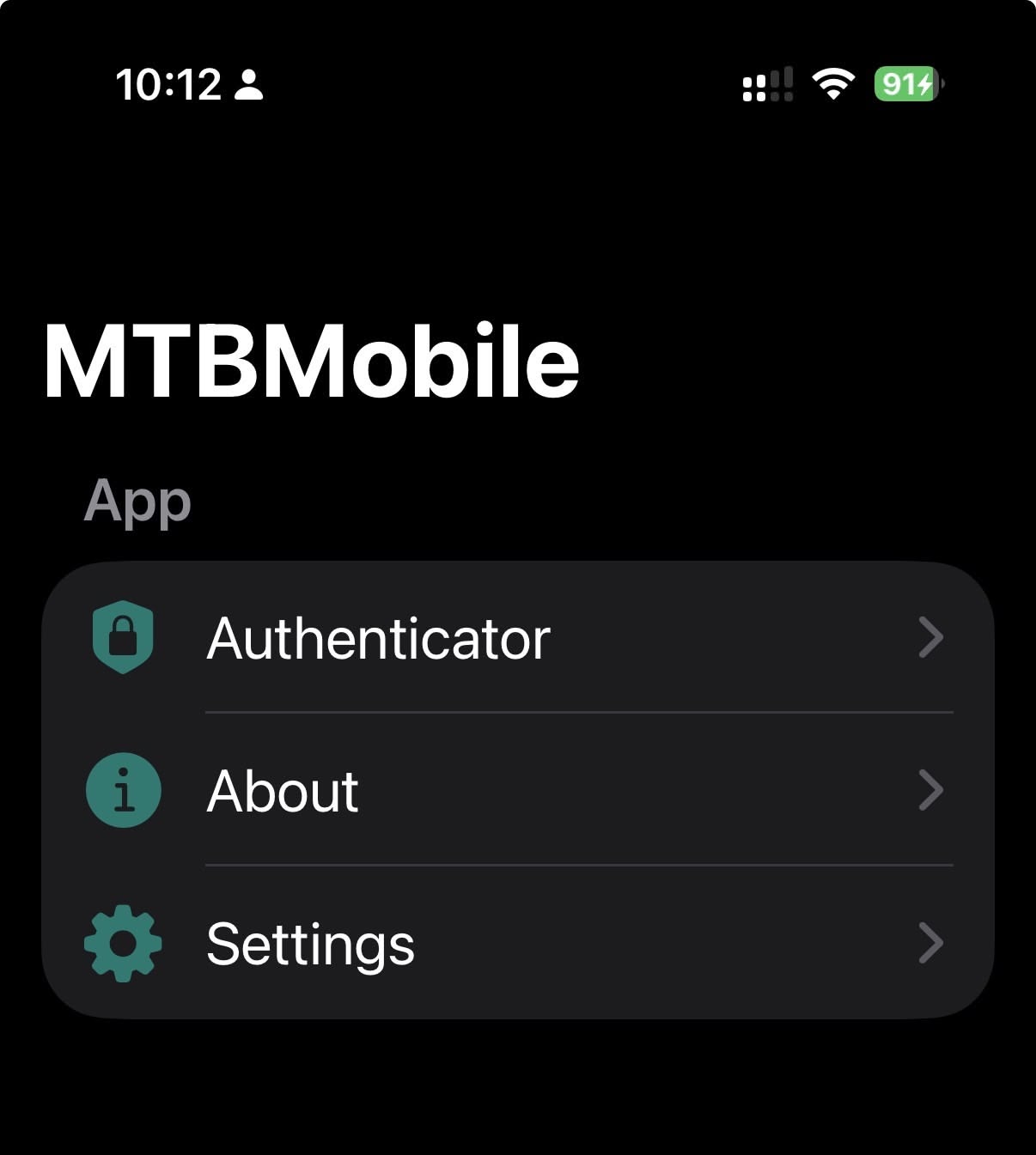
App Section
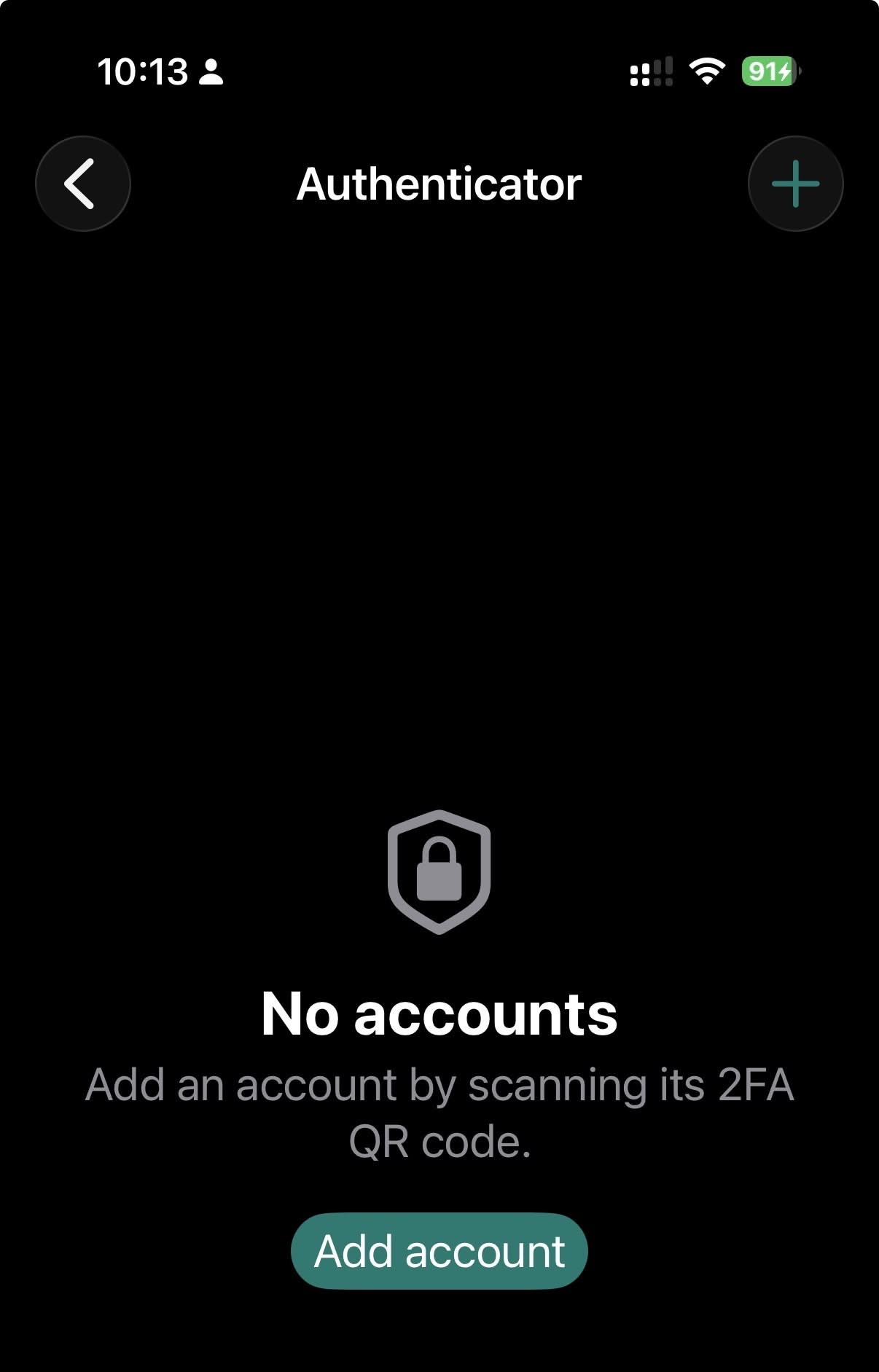
Authenticator
The empty screen for Two-Factor Authentication. (2FA) here we are able to add accounts. More to that in a later 2FA post.
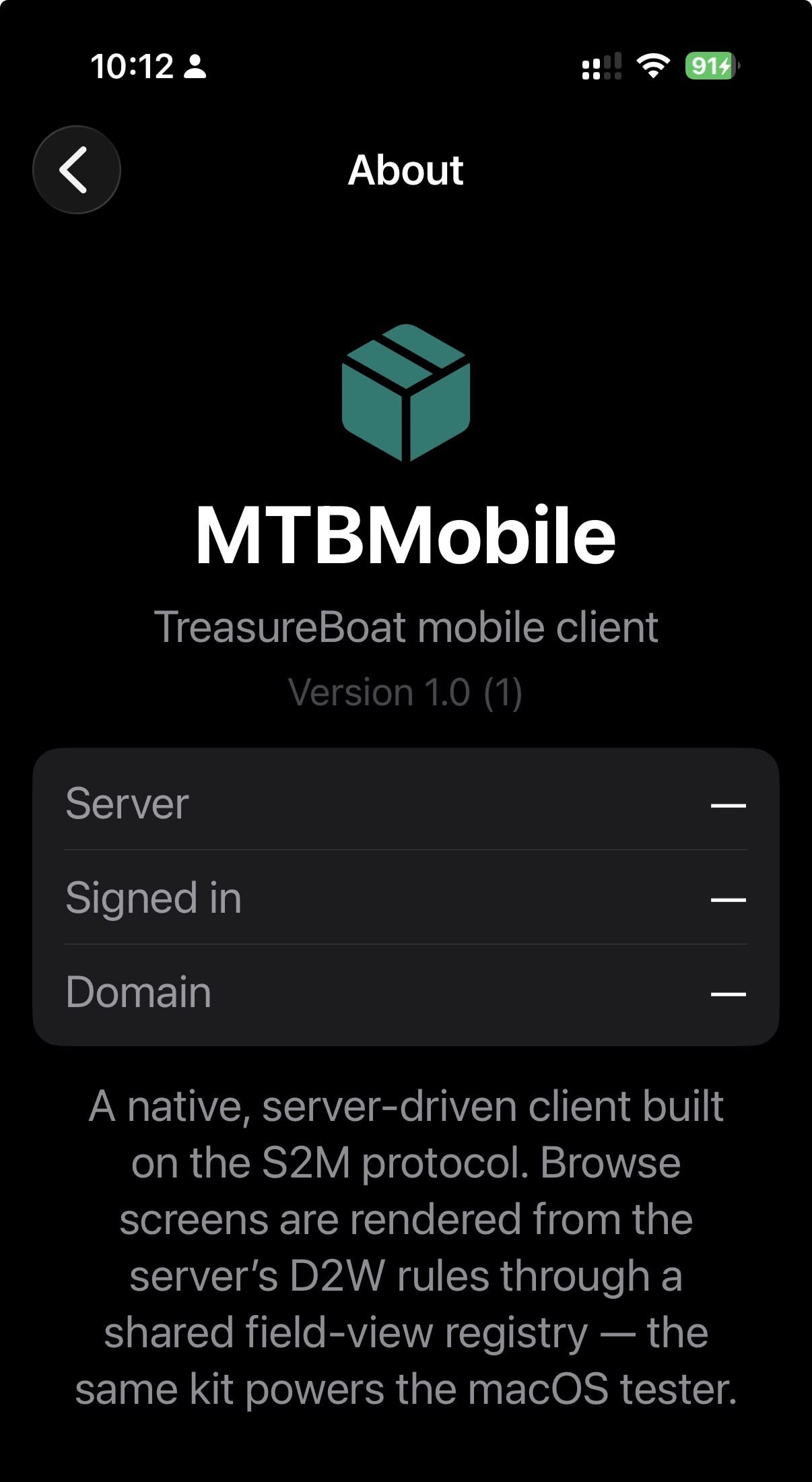
About
The about Screen shows information about the app version, and when available, the current connected Server information like Server name, Signed in userName, and current Domain.
Settings
The Setting Screen allows you to configure the app’s settings.
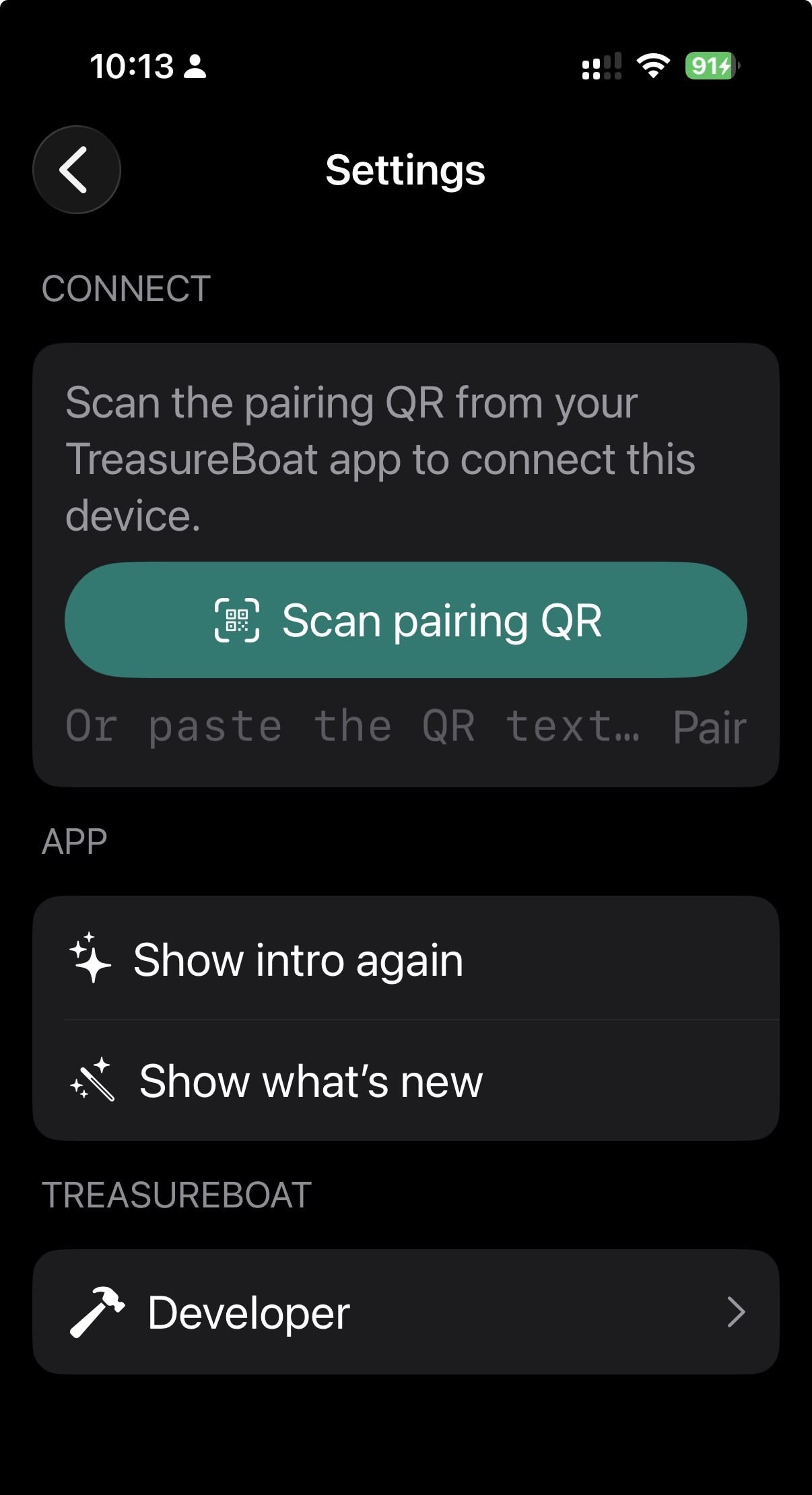
- Connect – Scan pairing QR (Connect the Mobile App to a Server)
- App – Show intro again
- App – Show what’s new
- TreasureBoat - Developer Menu
Developer Menu
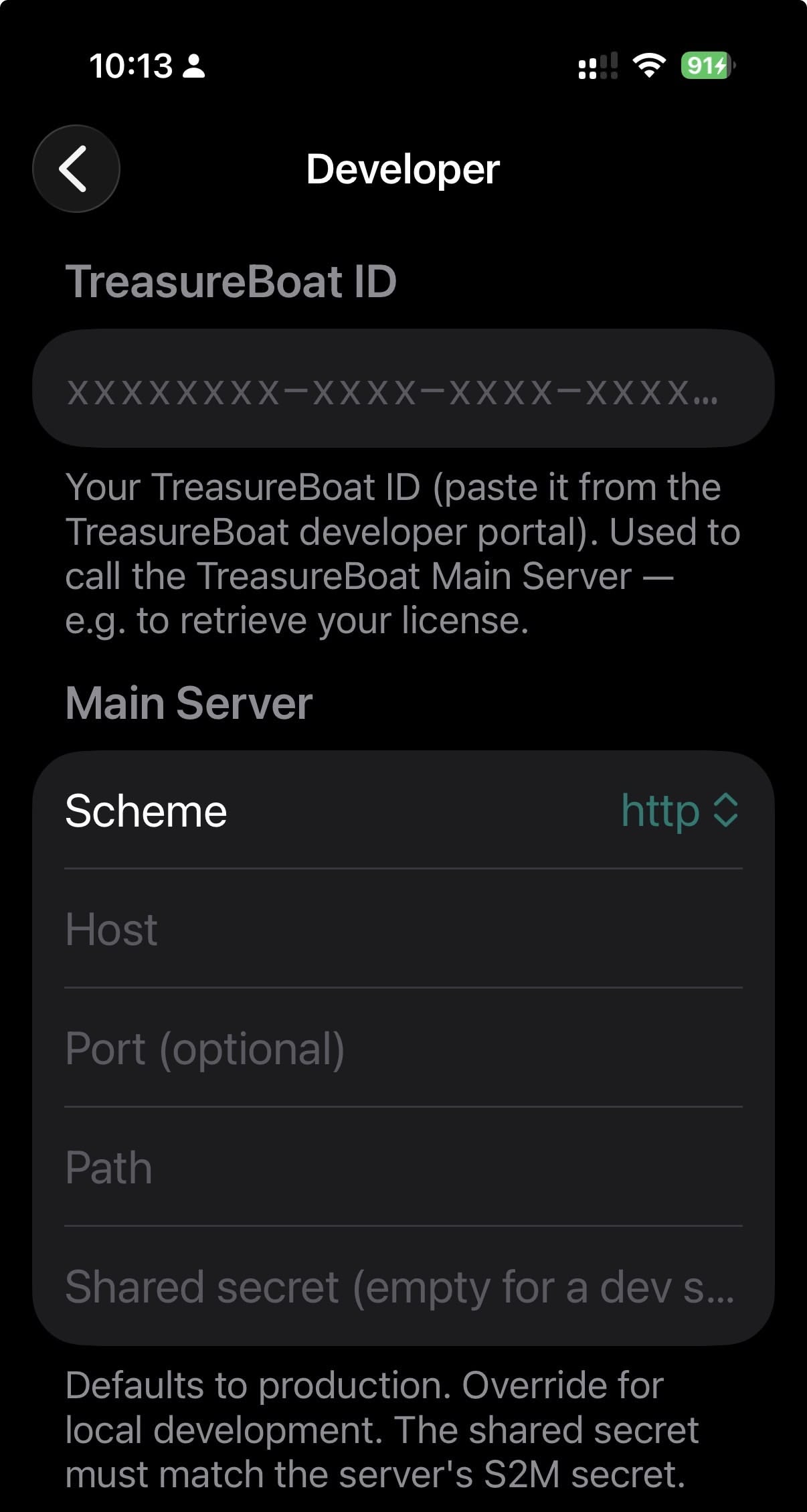
Adding the Developer TreasureBoat ID. Needed for connection to the TB Server. (only Developers)
Main Server:
Connection information for connection to the TB Main Server, special for development, it is possible to adjust here.
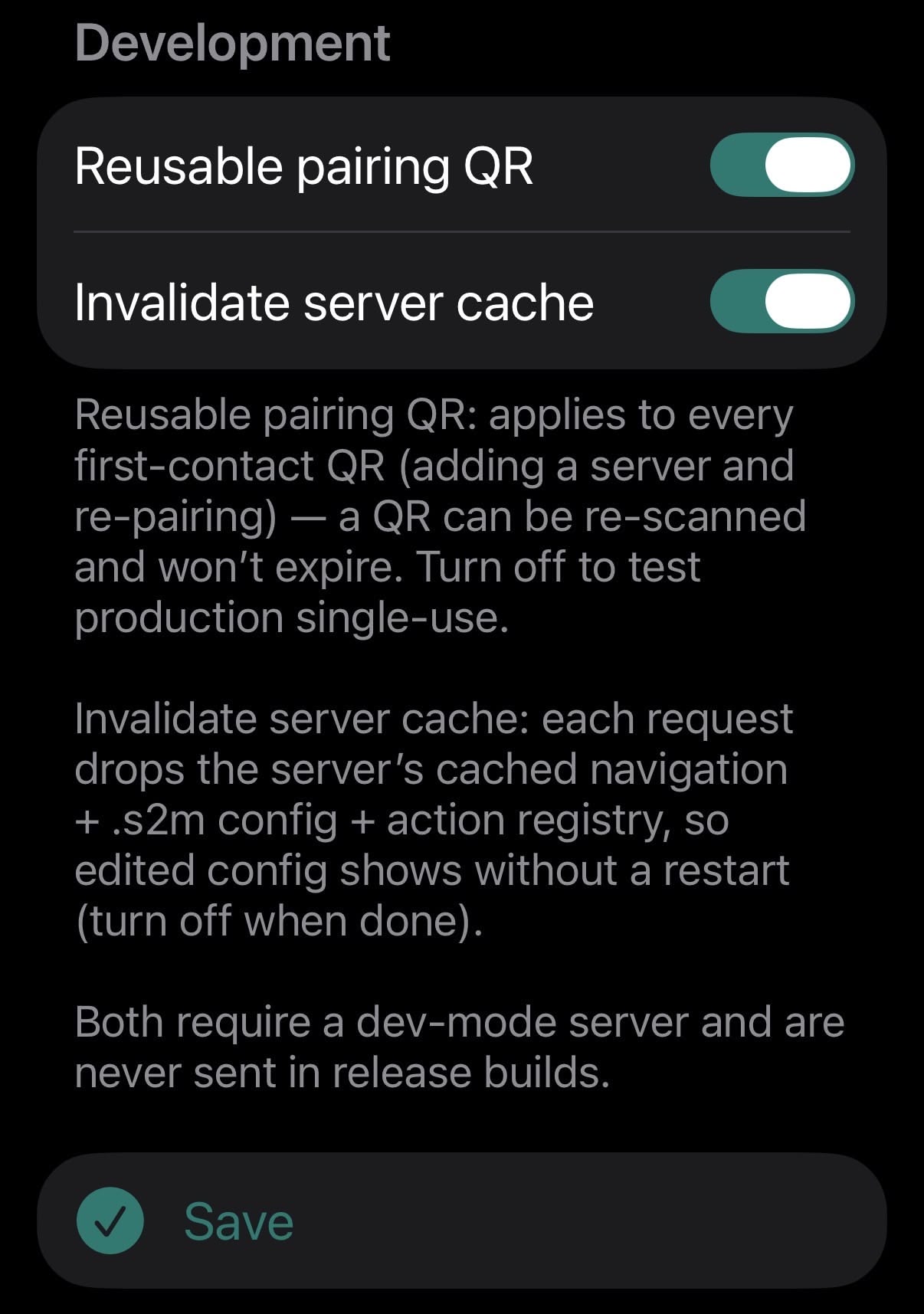
Development
Here you can find some Developer Helper switches.
Reusable pairing QR: applies to every first-contact QR (adding a server and re-pairing)
a QR can be re-scanned and won’t expire. Turn off to test production single-use.
Invalidate server cache: each request drops the server’s cached navigation + .s2m config + action registry,
so edited config shows without a restart (turn off when done).
Both require a dev-mode server and are never sent in release builds.
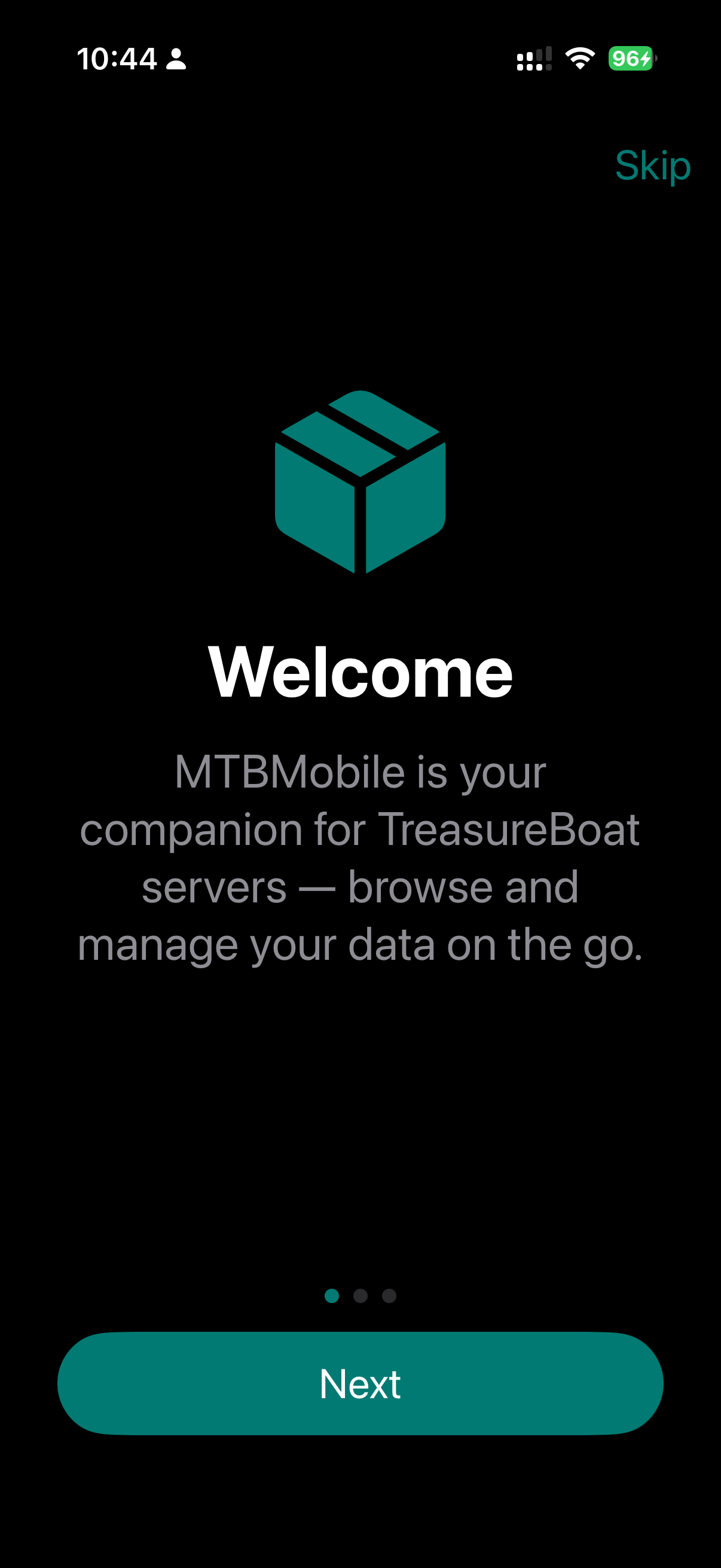
Intro
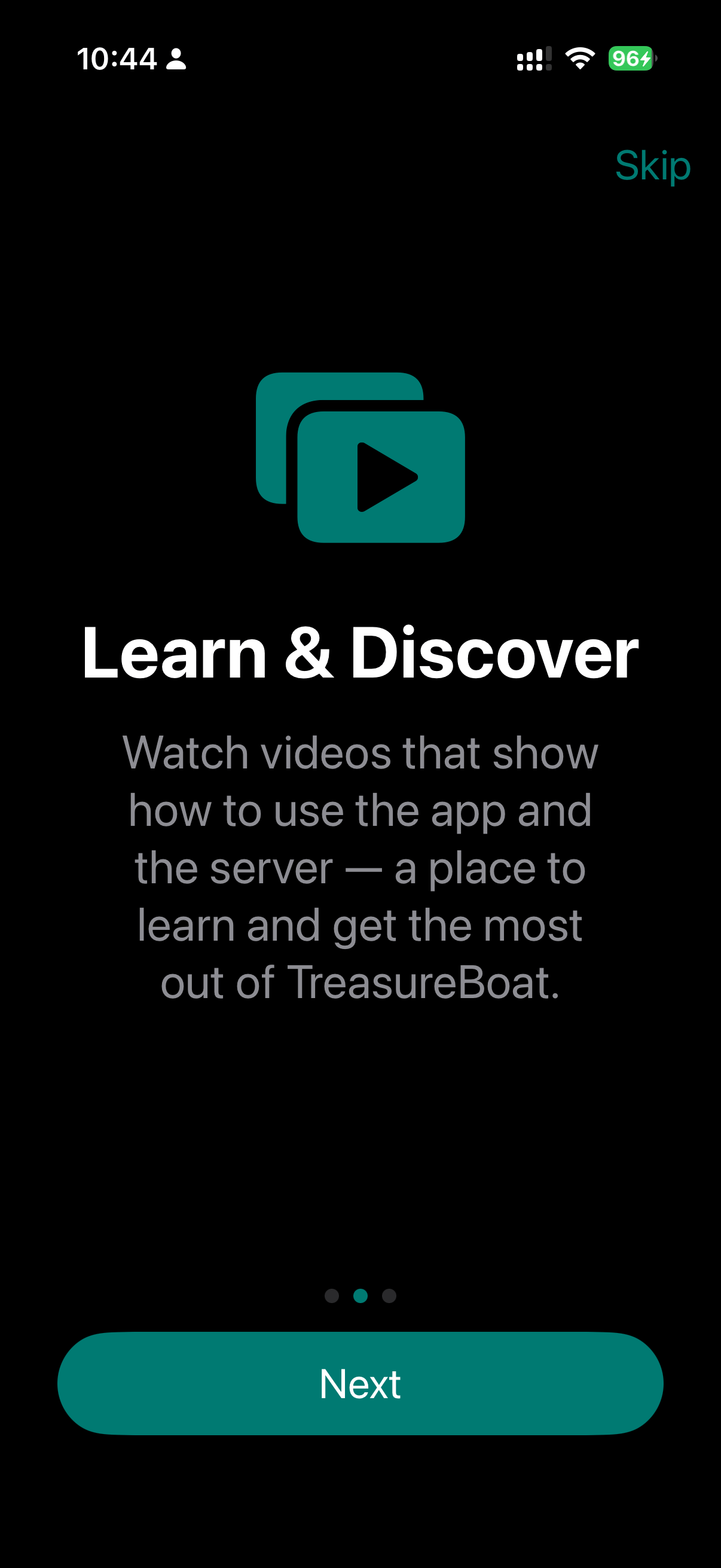
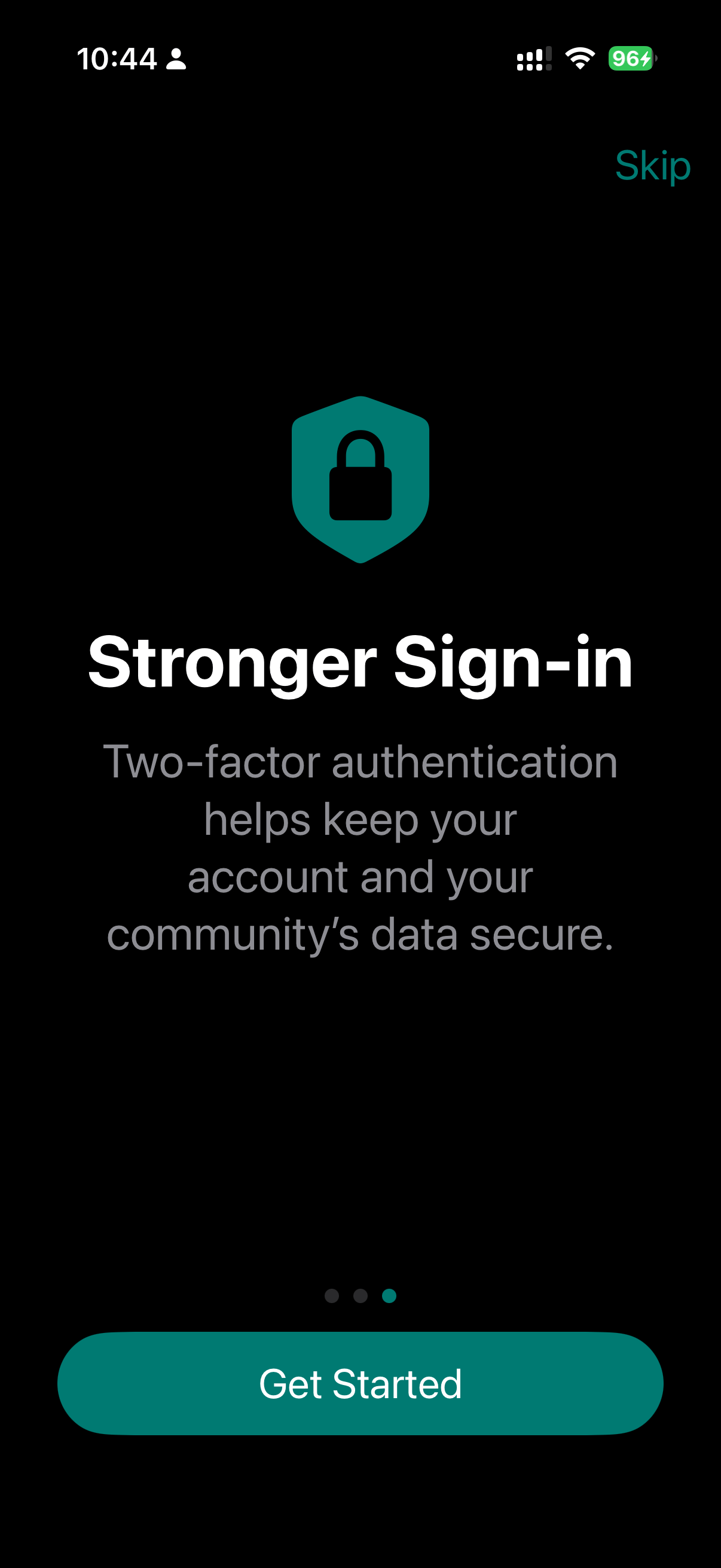
The intro will be shown when the app is first installed or when the user chooses to show it again.
This are the default screens and will be configurable.
What’s new
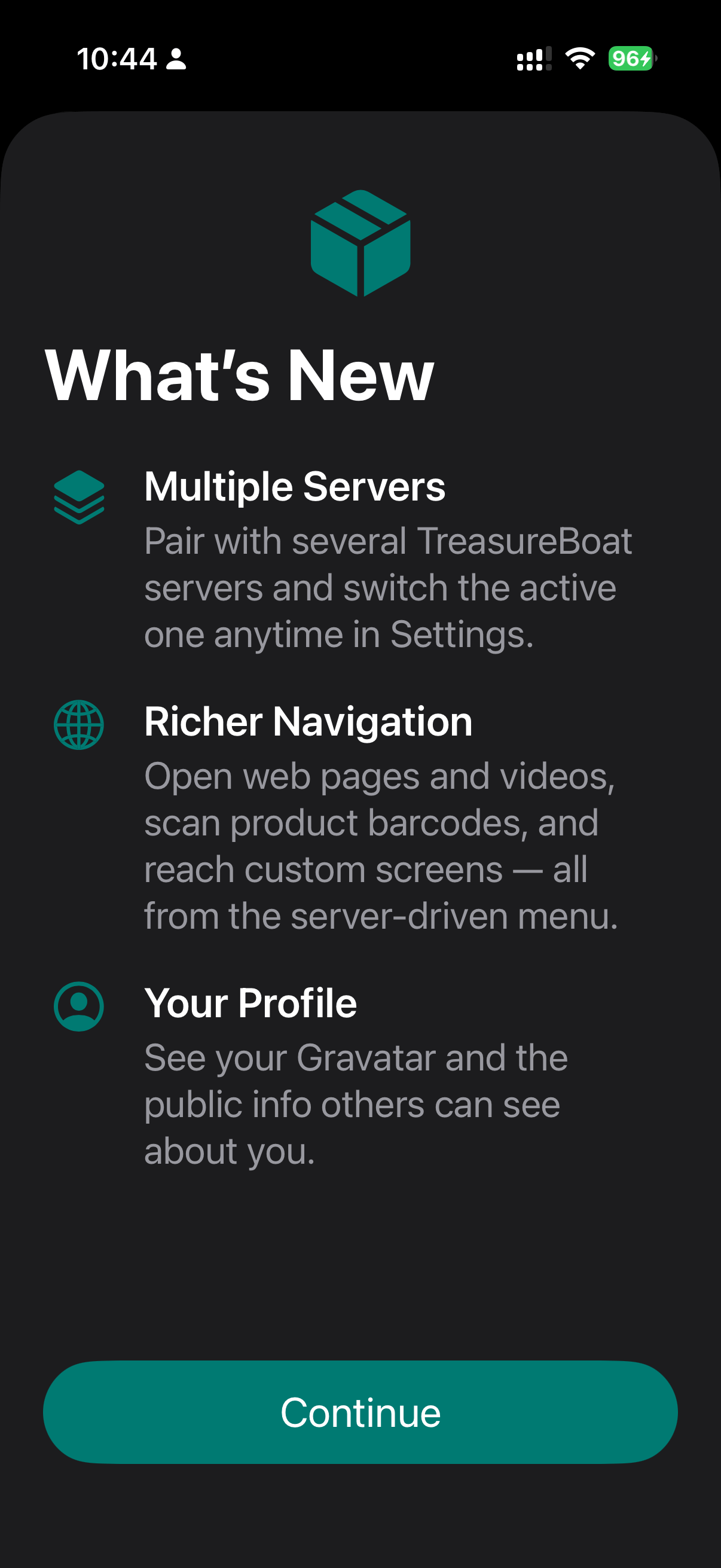
The What’s new sheet shows the latest changes and updates to the app.
It shown when the app has a new version or when the user chooses to show it again.
This will be configurable.
Technical Information
- FaceID support
- Communication secure connection, different encryption for each device
#Mobile